Members and roles
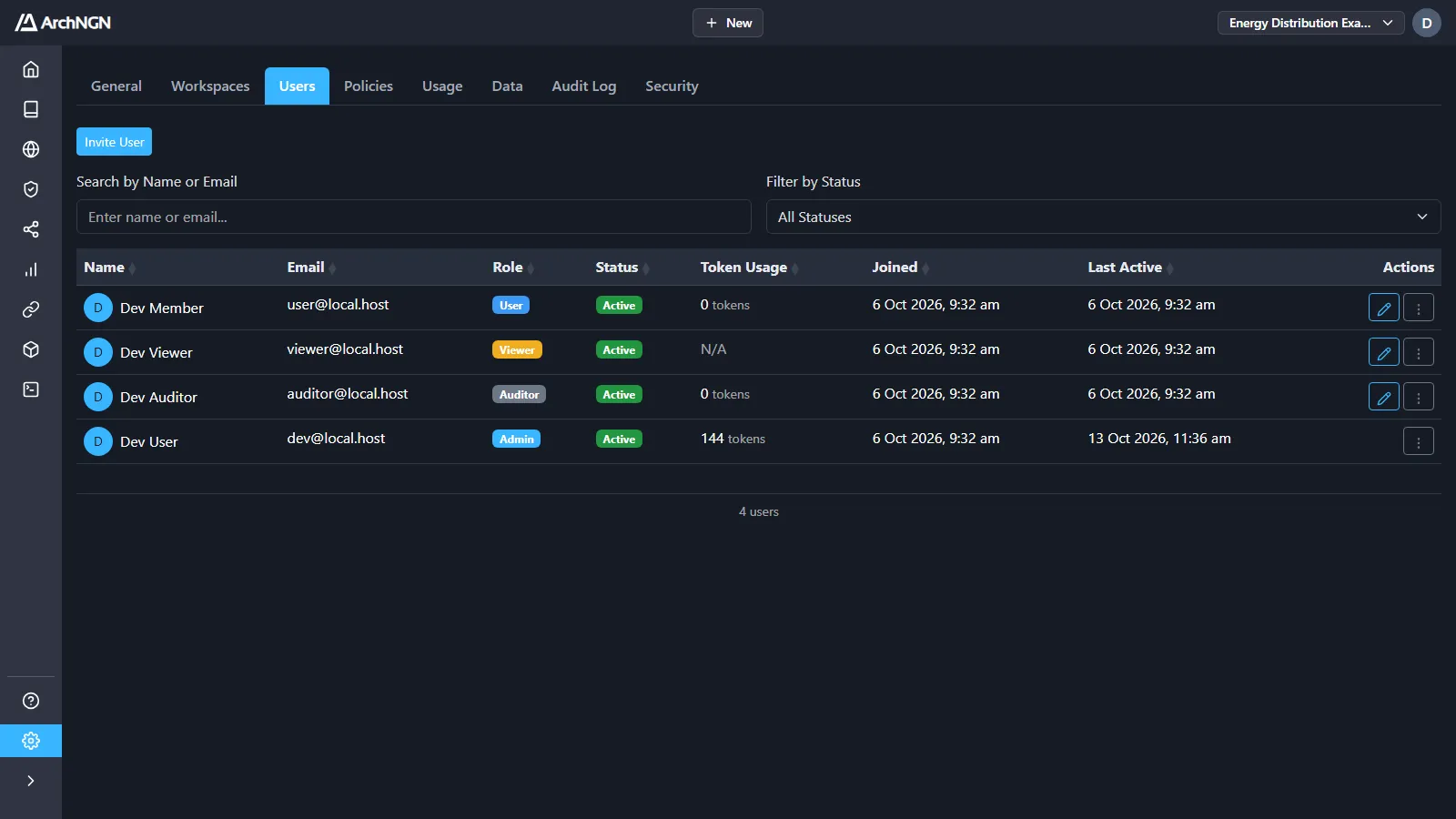
Every member of an account has one role. The role decides what they can see and do in every workspace. Manage members under Settings → Users.
Built-in roles
Section titled “Built-in roles”| Role | For |
|---|---|
| Admin | Running the account: members, policies, workspaces, tokens, imports and the audit log, as well as everything a User can do. |
| User | Full use of workspaces: editing the model, connectors, workstreams and jobs. |
| Viewer | Read-only access to the model, reports and governance. |
The roles are cumulative: a User can do everything a Viewer can, and an Admin everything a User can. Admins are set up with the account. You invite Users and Viewers. See Invite members.
What each role can do
Section titled “What each role can do”| Capability | Admin | User | Viewer |
|---|---|---|---|
| See Home, the Repository, Explorer, Governance, Reports and the Metamodel | Yes | Yes | Yes |
| Create, edit and delete objects, associations and guidance | Yes | Yes | No |
| Rename and delete workspaces | Yes | Yes | No |
| Add, run and delete connectors | Yes | Yes | No |
| Run workstreams, and manage jobs | Yes | Yes | No |
| Create workspaces | Yes | No | No |
| Enable and disable frameworks, and author policy packs | Yes | No | No |
| Accept a risk on a finding or a design check | Yes | No | No |
| Manage members, roles and account settings | Yes | No | No |
| Import workspaces | Yes | No | No |
| Read the audit log | Yes | No | No |
Items and tabs you can’t use are hidden in the app.
Accepting a risk is admin-only by default on purpose. It switches a standard off for a dated period, and the person a gate blocks shouldn’t also be the person who can unblock it unobserved. Reading findings and check history needs only read access, so a developer can see why their build was blocked without an admin in the loop.
Capabilities and custom roles
Section titled “Capabilities and custom roles”Behind each role is a set of capabilities, such as workspace:write, connector:write, job:run, policy:manage, audit:read and check:waive. The app checks capabilities, not role names, on every request.
An account can also have custom roles: a named set of capabilities for a job the built-in roles don’t fit. For example, an Auditor who can read everything plus the audit trail, or a connector operator who can manage connectors but not members. Custom roles belong to your account and are never visible to other accounts. Contact support@archngn.com to have one set up.
Manage a member
Section titled “Manage a member”From a member’s actions in Settings → Users:
- Edit role: change their role.
- Remove from account: they can no longer sign in to this account. Their work stays.
- Export data (DSAR) and Erase personal data: answer a data-subject request. See Deleting your data.
Search by name or email, and filter by status to see Active or Removed / Erased members. Token Usage shows the credits each member used this month.