Connectors
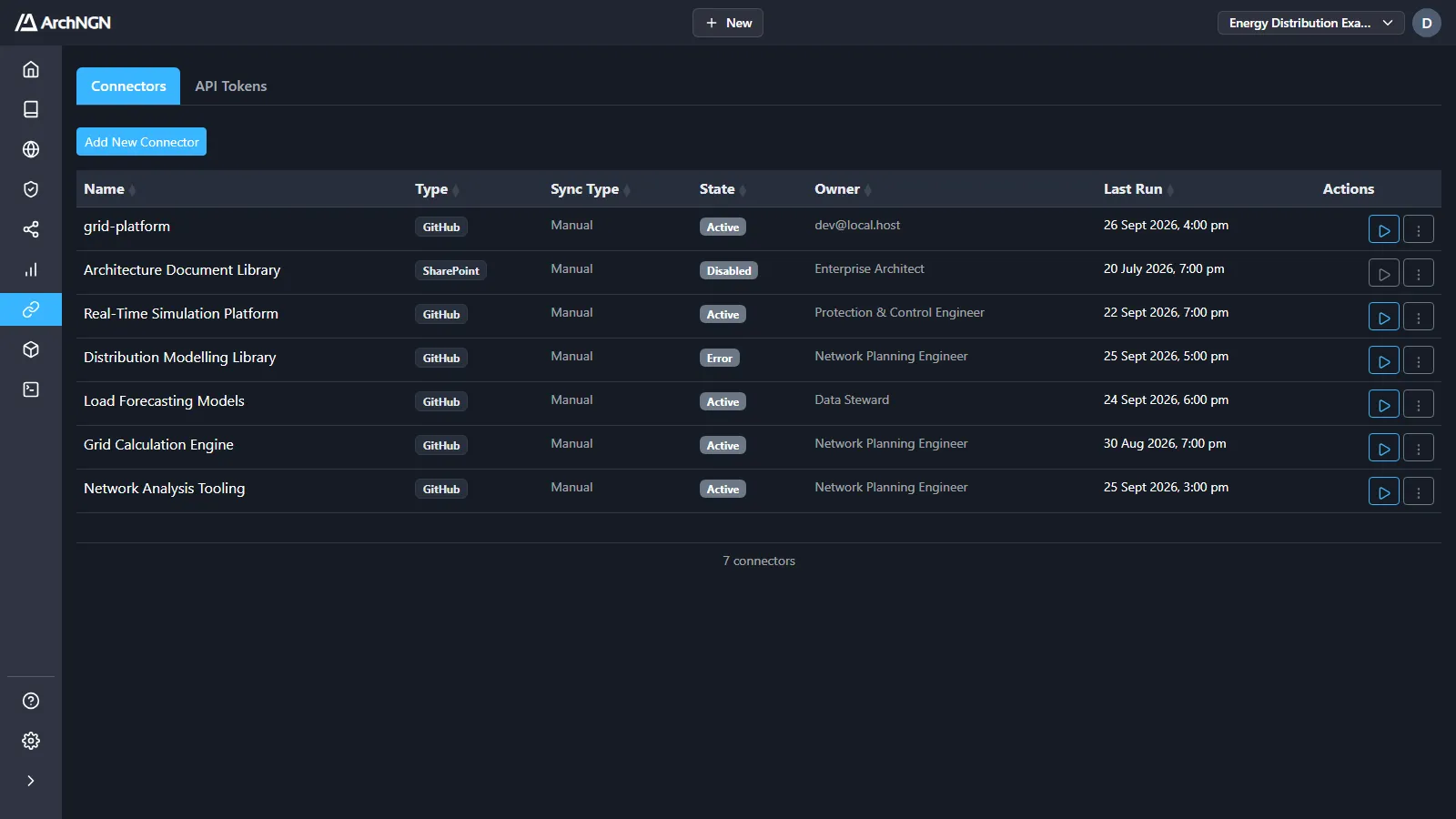
Connectors read your systems into the active workspace’s model and keep it current. Open them from Integrations → Connectors.
Sources
Section titled “Sources”Click Add New Connector, or choose Connector from + New. The picker groups connectors into three sources.
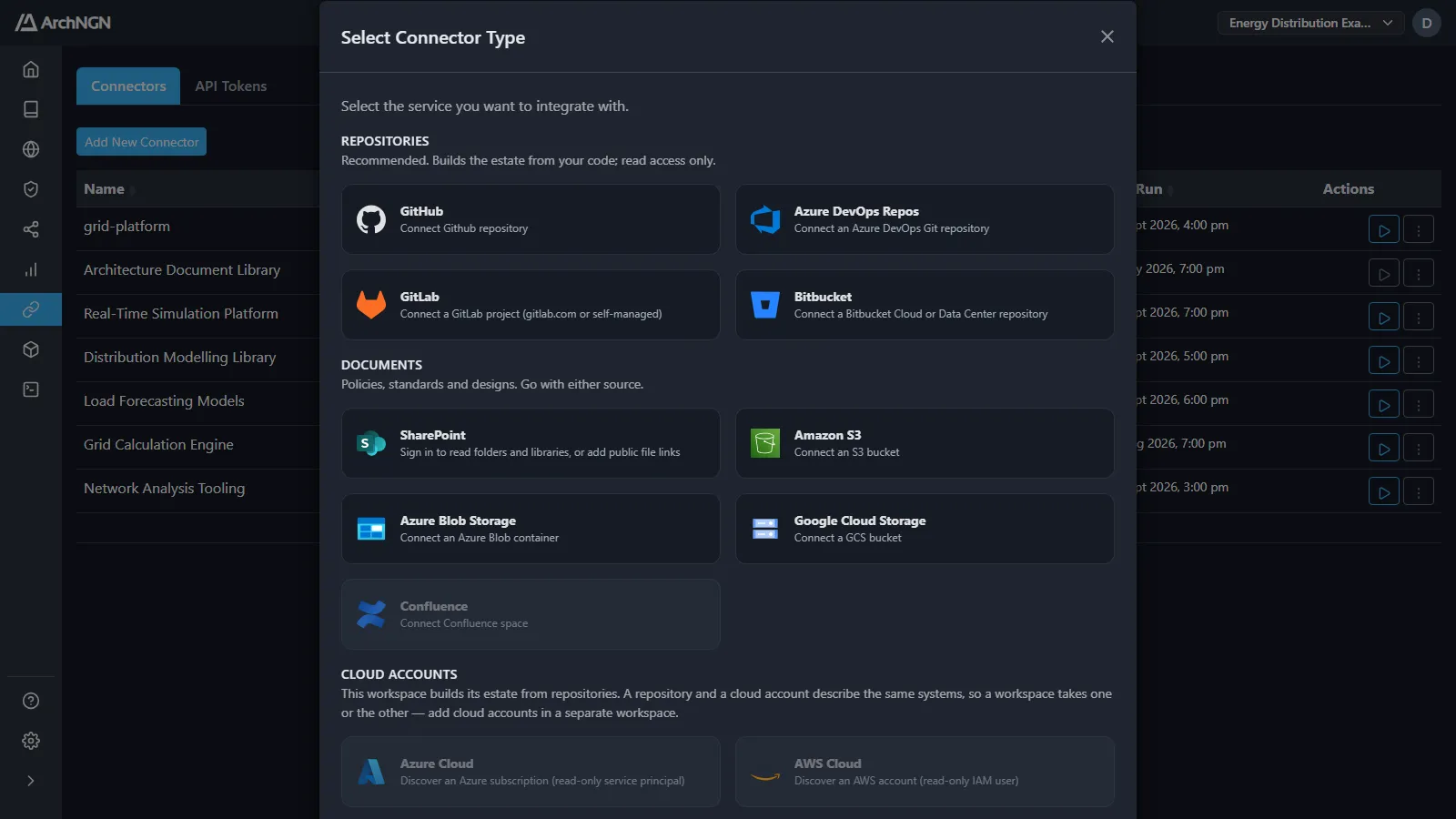
| Source | Connectors | What a run produces |
|---|---|---|
| Repositories (recommended) | GitHub, Azure DevOps Repos, GitLab, Bitbucket | The estate as built from your code: applications, components, services, interfaces and data stores, the infrastructure they declare, and the links between them. Read access only. |
| Documents | SharePoint, Amazon S3, Azure Blob Storage, Google Cloud Storage | Policies, standards and designs. Formally defined guidance goes to the Reference Library, and terms to the Glossary. Documents describe the estate, so they don’t create architecture objects. |
| Cloud accounts | AWS Cloud, Azure Cloud, GCP Cloud | The estate as deployed: the resources in an account, subscription or project, read-only, and the links between them (routing, messaging, data access, network membership). |
Confluence is on the roadmap and shows greyed out in the picker.
One estate source per workspace
Section titled “One estate source per workspace”A workspace builds its estate from repositories or from cloud accounts, not both. A repository and a cloud account describe the same systems, so a workspace fed by both would record each one twice. The first repository or cloud-account connector decides, and the picker greys out the other group. Document sources go with either.
Repositories are recommended. Use cloud accounts for estates with no usable repository, such as legacy or hand-built environments, in a workspace of their own.
Add a connector
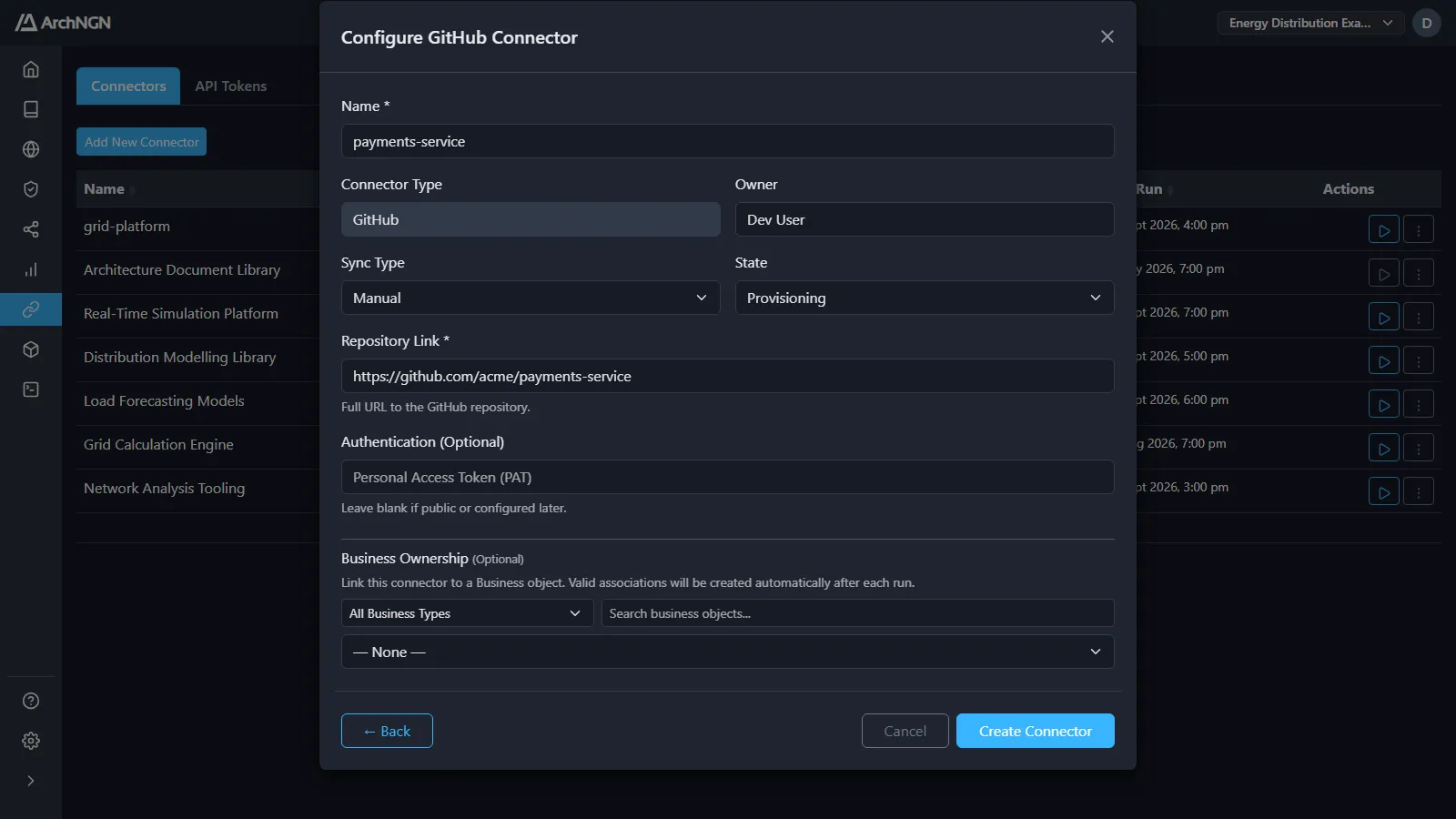
Section titled “Add a connector”- Click Add New Connector and choose the connector.
- Enter a Name, and the connection details for that connector. The setup guides under Connector setup list what each one needs.
- Choose the Sync Type: Manual, or a schedule (Hourly, Every 6 hours, Daily or Weekly).
- Optionally, link the connector to a Business Ownership object, such as the capability or value stream the code serves. Valid associations to it are created after each run.
- Click Create Connector.
Credentials
Section titled “Credentials”Secrets you enter (access tokens, keys, client secrets, service-account keys) move into an encrypted secrets store when you save. They are never stored in the connector’s configuration and never shown again: the form shows a placeholder instead. To rotate one, open the connector and type the new value over the placeholder. The AWS Cloud connector and the delegated access options for cloud storage store no secret at all.
Run a connector
Section titled “Run a connector”Click Run analysis (▷) on the connector’s row. The run is a background job: the row shows Queued or Running while it works, and the job is listed under Jobs.
- One run per connector at a time. Running a connector that is already syncing attaches you to the running job instead of starting another. Different connectors run in parallel.
- Scheduled runs start once their interval has passed since the last attempt, so a failing source is retried once per interval, not constantly. A scheduled repository run first checks whether the branch has moved. If it hasn’t, nothing runs and nothing is charged.
- Who pays: a scheduled run is charged to the person who turned the schedule on, as if they had pressed Run.
Each run classifies what it reads against your account’s effective metamodel, and links objects to the Reference Library guidance that governs them. Runs are stable: an object is matched to what is already there by a stable identity (a resource ID, an ARN, a repository path) before its name, so a re-run updates objects in place rather than recreating them.
Code linked to where it runs
Section titled “Code linked to where it runs”When a workspace’s code and its runtime are both known, ArchNGN links each application component to the cloud resource it runs on, with a Deployed To association. It matches on deterministic evidence, such as container image references, declared resource names and service tags. A shared public base image such as nginx isn’t treated as evidence, because it runs in many unrelated places.
Where two or three resources match equally, or an AI match is only fairly sure, the link is held as a suggested link for a person to decide. Suggested links show above the list in Repository → Associations while any are pending. Accepting one draws the link and keeps it across every sync. Rejecting one removes it, and it is never suggested again. See Link evidence.
Applications deployed on Home shows how much of the estate is linked this way.
Manage a connector
Section titled “Manage a connector”From the row’s actions (⋮):
- View details and View last run: the run history, and what the last run read and changed.
- Edit connector: change its name, schedule, state, owner or connection details. Set the state to Disabled to stop its schedule.
- Delete connector: remove it. You can also remove the objects and links it created. An object another source also contributes to is kept.
A connector only owns what it created. Links drawn by another connector, by cross-layer matching or by a person are never removed by its runs.
Credits
Section titled “Credits”Each connector run costs 2 credits from the account’s monthly allowance. A scheduled run that finds nothing changed costs nothing. See Usage.