Objects and Associations
Objects and associations are the building blocks of your architectural model. Objects represent assets such as applications, servers, APIs, capabilities, and data entities. Associations define directional relationships between them, building the dependency graph that powers impact analysis and visualisation.
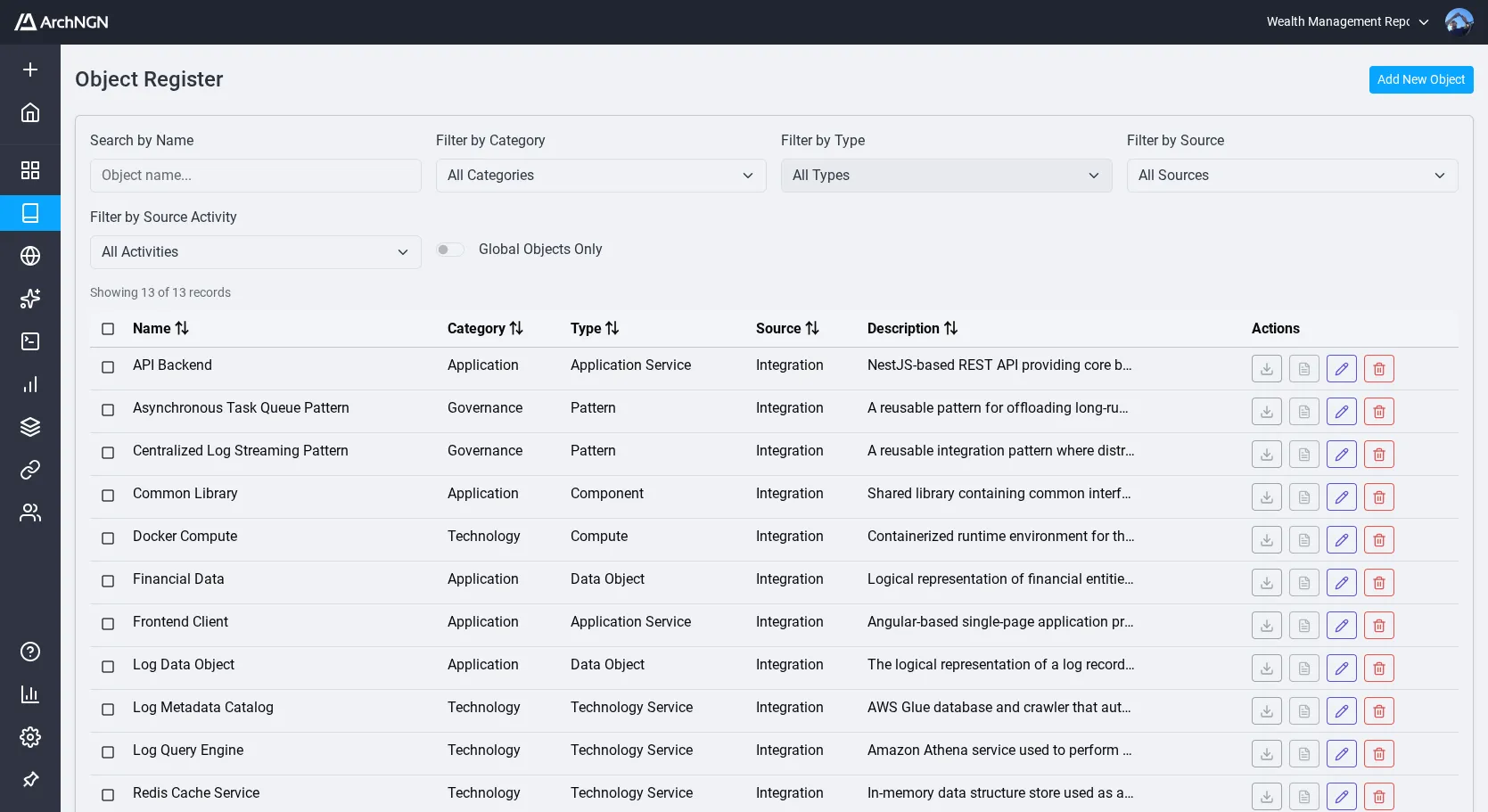
Creating an Object
Section titled “Creating an Object”- Navigate to the Repository and select the Objects tab.
- Click Create New Object.
- Fill in the core fields:
- Name (required): A descriptive name for the asset
- Type: The specific type (e.g., Business Application, Data Store, Interface)
- Category: Business, Application, Data, or Technology
- Add optional metadata:
- Description, Business Owner, Technology Owner
- Lifecycle Status, Criticality, Version
- Tags, Interface Type
- Save the object.
The category and type options are drawn from your account’s effective Metamodel (the base schema plus any applied overlays).
Editing an Object
Section titled “Editing an Object”Click any object in the Repository to open its detail pane. From here you can update metadata, view associated relationships, manage attached source files, and view the object’s context graph.
Bulk Import
Section titled “Bulk Import”For loading many objects at once (for example, when seeding a new workspace from a spreadsheet), use the bulk import workflow:
- From the Repository, click Import.
- Select a CSV or structured file containing your objects. The expected columns match the core object fields (Name, Type, Category, Description, Lifecycle Status, etc.). The valid categories and types are those in your effective Metamodel.
- Review the import preview, which highlights duplicates and validation errors.
- Confirm to commit the import. Created objects appear immediately in the Repository with their source set to Import.
Associations can also be imported in bulk by including the source and target object identifiers along with an association label in the import file.
Object Sources
Section titled “Object Sources”Objects track how they were created:
- Manual: Created directly in the Repository
- Import: Loaded from a bulk import file (CSV or structured upload)
- Document: Extracted from an uploaded file via a workstream
- URL: Extracted from a web page via a workstream
- Workstream: Generated by an AI-driven job
- Connector: Synced from an external system (e.g., GitHub)
Global Objects
Section titled “Global Objects”Mark an object as Global to make it visible across all workspaces in your account. This is useful for shared infrastructure or organisation-wide capabilities.
Creating Associations
Section titled “Creating Associations”Associations define directional relationships between two objects. Examples include “Sends Data To”, “Hosted On”, “Depends On”, and “Supports”.
- Open an object’s detail pane and navigate to the Associations tab.
- Click Add Relationship.
- Select the target object and define the Label.
Associations also support interaction type (e.g., REST API, Event-Driven, Shared Database) and description fields, which are typically populated by workstreams and connectors.
Associations are also visible in the Associations tab of the Repository, where you can search, filter, and manage all relationships in the workspace.
Deleting Objects
Section titled “Deleting Objects”Deleting an object will remove all associations linked to it. This action cannot be undone.
You can delete individual objects from the detail pane, or use bulk selection in the Repository to delete multiple objects at once.