Explorer
The Explorer shows the active workspace as interactive graphs. Each tab answers a different question for different people:
| Tab | Question | For |
|---|---|---|
| Global | What is in the estate, and how does it connect? | Architects and owners |
| Object | What touches this system? | Engineers and system owners |
| Context | What does an AI see about this object? | Anyone about to run a workstream or a check |
Each tab has a Filters panel, which changes what is shown, and a Display panel, which changes how it is shown. Nodes are coloured by category: Business, Application, Data and Technology. Click a node to open the object’s details.
Global
Section titled “Global”The whole workspace as one graph. Nodes are objects and lines are associations. The count under the graph says how many of each are shown.
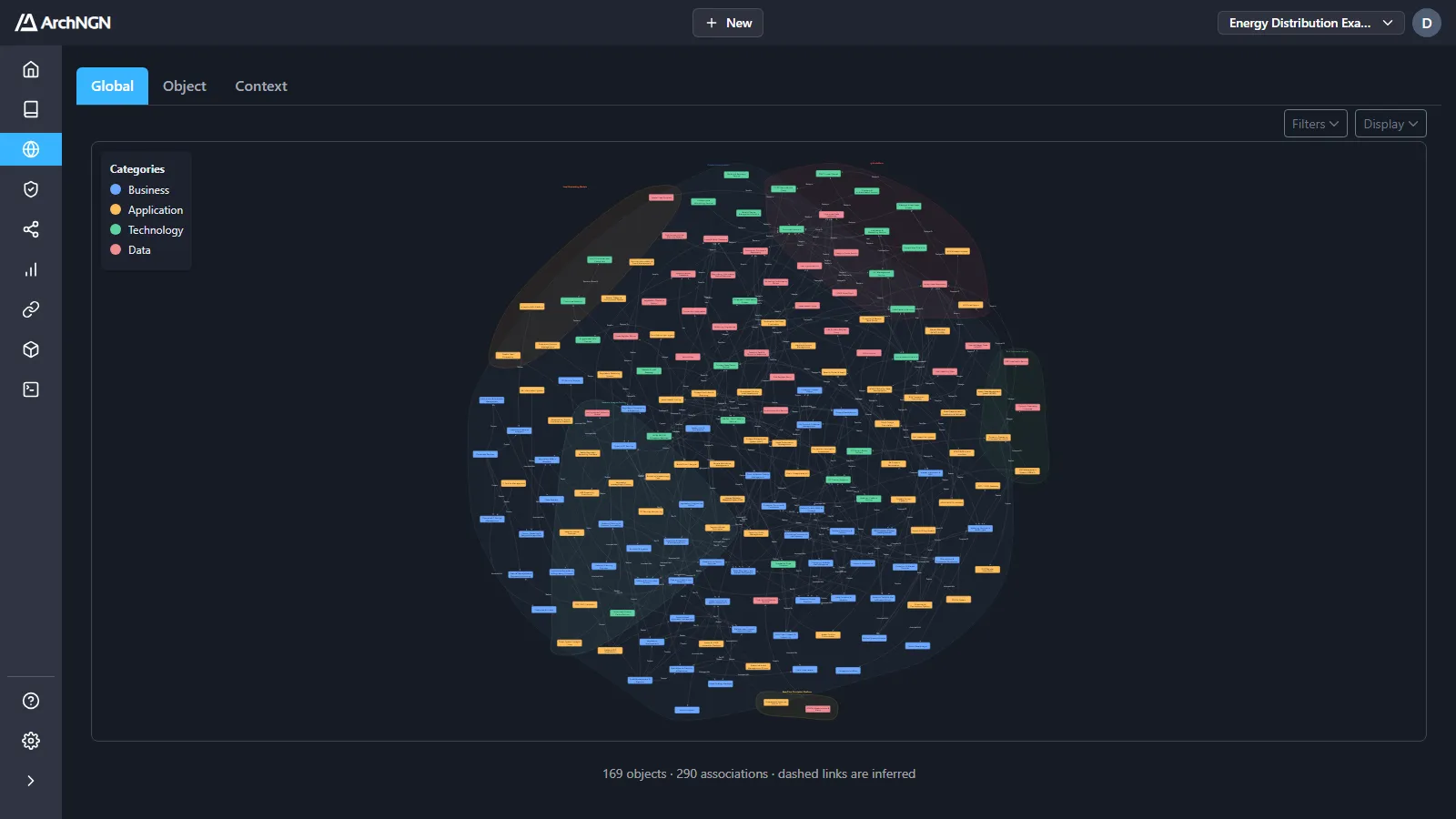
- Filters: Category, Type, Source and Source Activity.
- Display: Grouped clusters objects in shaded hulls by the connector run or workstream that produced them, so you can see where each part of the model came from. Hierarchical lays the graph out in layers. Show link labels names each line. Show global objects includes objects shared across workspaces, drawn with a gold border.
- Inferred links are dashed, so a guess never reads as fact. Where several links join the same two objects, the line is dashed only when every one of them is inferred. See Link evidence.
A large workspace asks before it draws more than 150 objects or associations. Filter it down, or choose Accept & Continue to draw it all.
Object
Section titled “Object”One object and everything directly linked to it. Pick the object from the tree on the left, grouped by category and type. Its details sit in the middle, and its neighbourhood is drawn on the right.
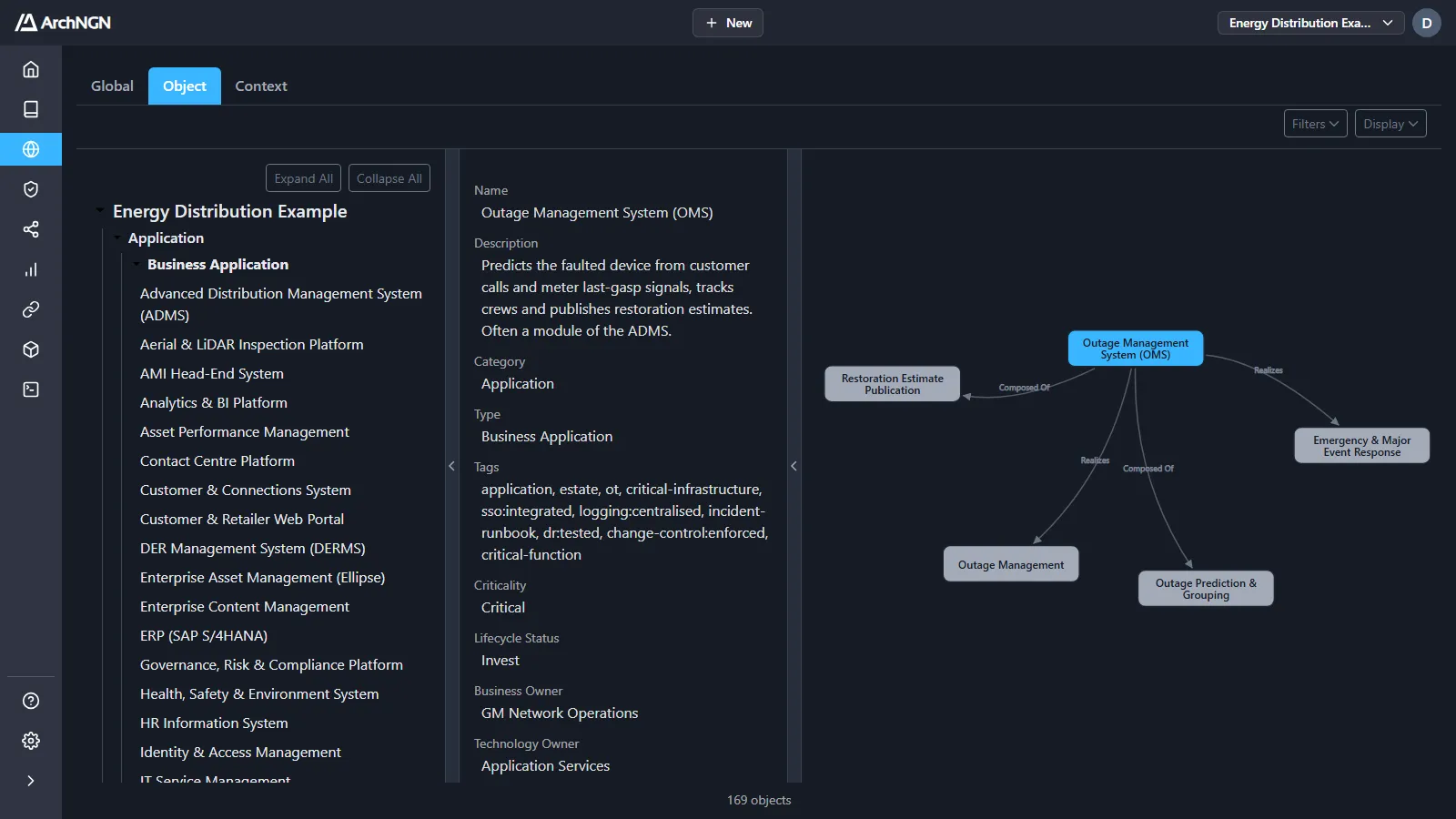
Use it for focused questions, such as “what depends on this service?” or “what does this capability touch?”, without the rest of the estate around it. Expand All and Collapse All open or close the tree.
Context
Section titled “Context”The picture an AI is given when it reasons about the workspace: the objects, the Reference Library guidance that governs them as their own nodes, and the relationships between them.
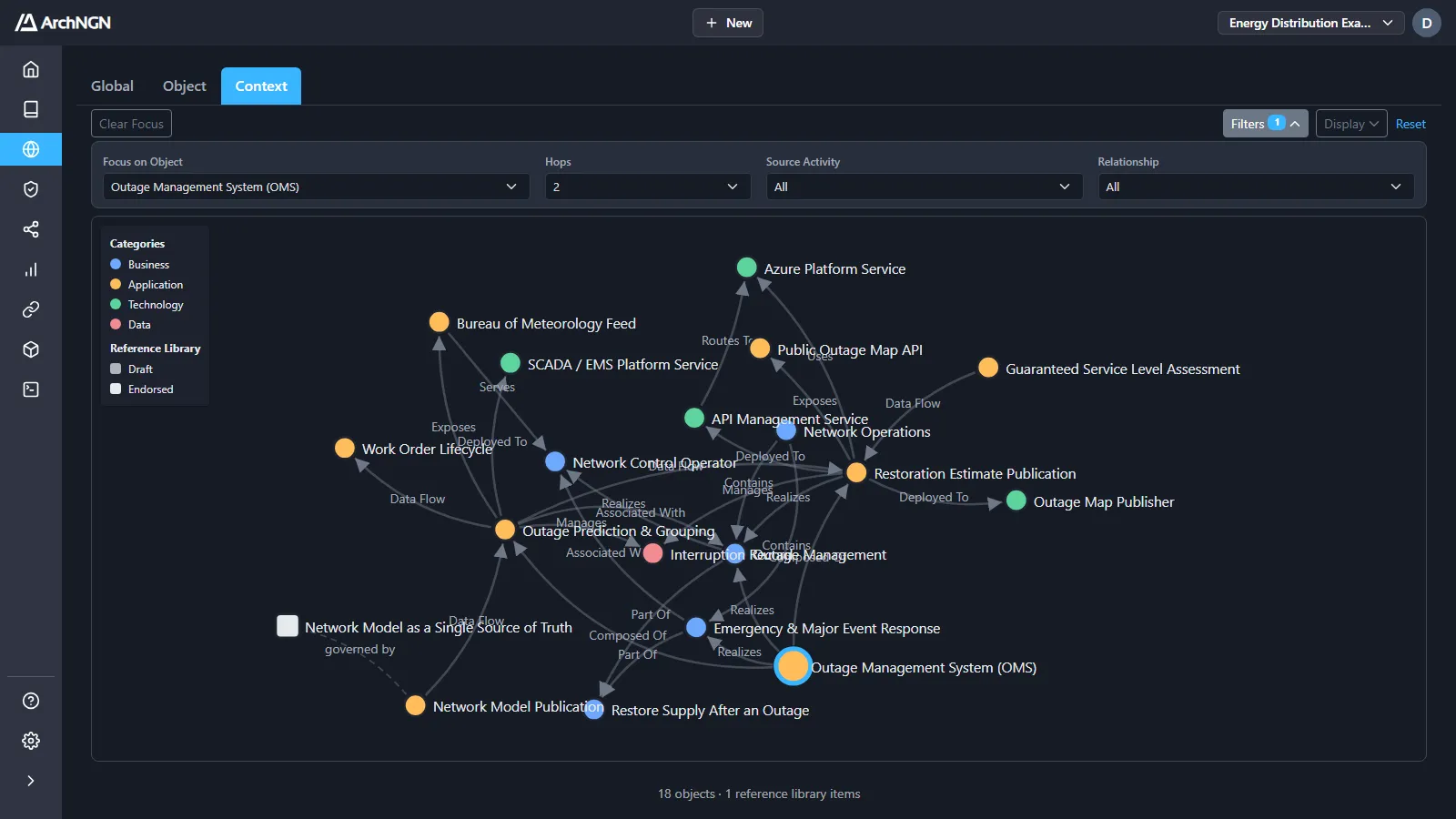
- Focus on Object and Hops: collapse the graph to one object and everything within one, two or three links of it. Clear Focus goes back to the whole workspace.
- Source Activity and Relationship: narrow to what one run produced, or to one kind of link.
- Guidance by approval: Reference Library nodes are white when endorsed and grey while still a draft, and link to what they govern with a dashed governed by line. Turn them off with Show reference library links under Display.
Use Context to check what a workstream or a design check will draw on before you run it.
When to use the Explorer
Section titled “When to use the Explorer”- Impact: follow the links to see what a change would affect.
- Onboarding: get a feel for an unfamiliar workspace.
- After a sync: spot orphaned objects, missing links or surprising dependencies.
For stakeholder views of the same model, see Reports.