Automations
Automations are AI-powered workflows that analyse documents and generate architectural outputs. They reduce the manual effort of creating architecture documentation, designs, and reviews.
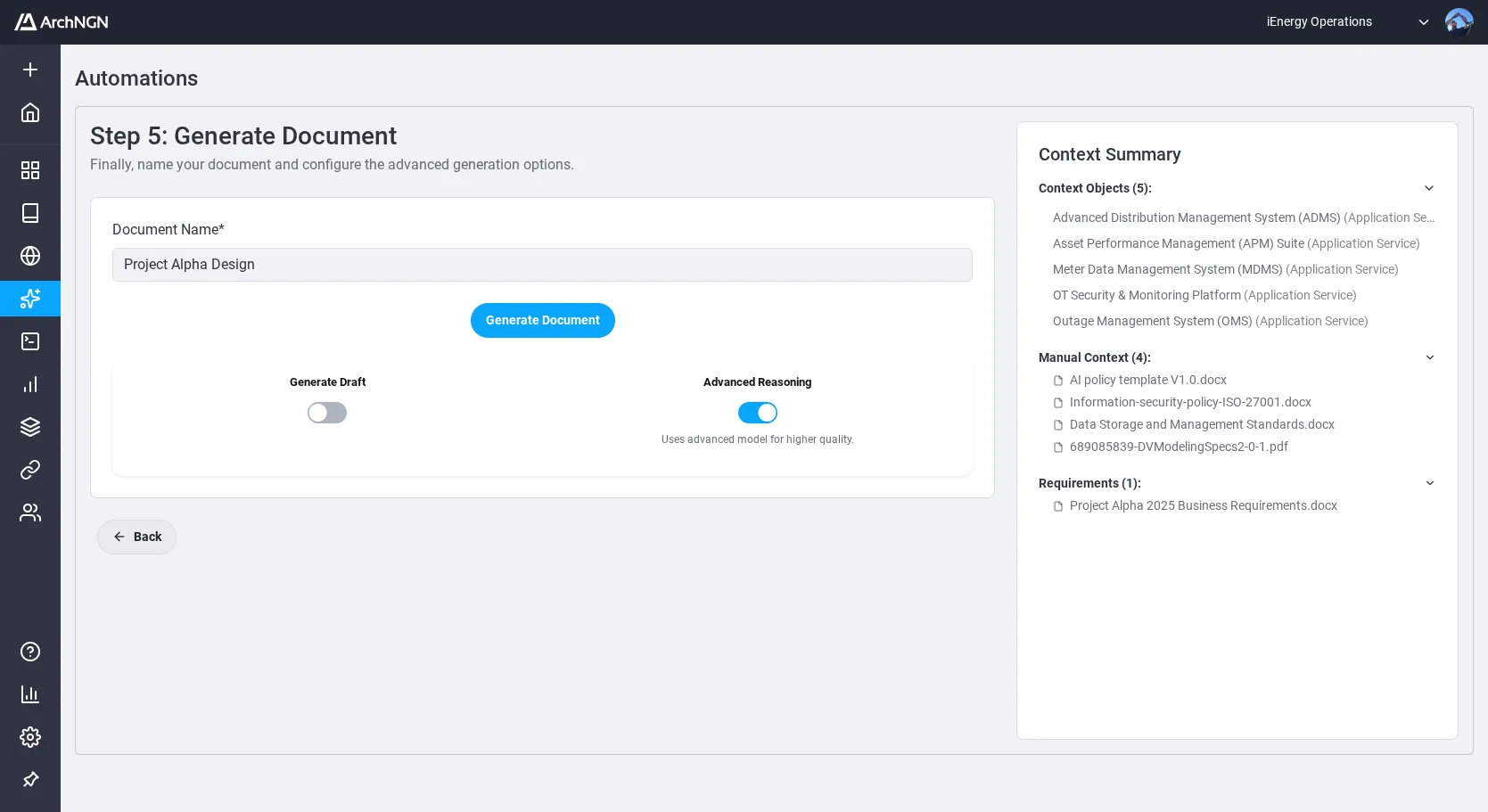
Automation Types
Section titled “Automation Types”| Type | What It Does |
|---|---|
| New Design | Generate an architecture design from business requirements, standards, and existing context objects |
| Reverse Engineer | Extract architectural elements from existing system documentation |
| Forward Engineer | Generate implementation documentation from an architecture model |
| Design Review | Assess a technology design against best practices, requirements, or internal standards |
Providing Context
Section titled “Providing Context”Automations accept three kinds of input. Combine them to give the AI the richest possible context:
- Upload documents: PDF, DOCX, PPTX, TXT, MD, XML, or HTML files containing requirements, standards, or architecture documentation
- Add URLs: Web pages to fetch and analyse
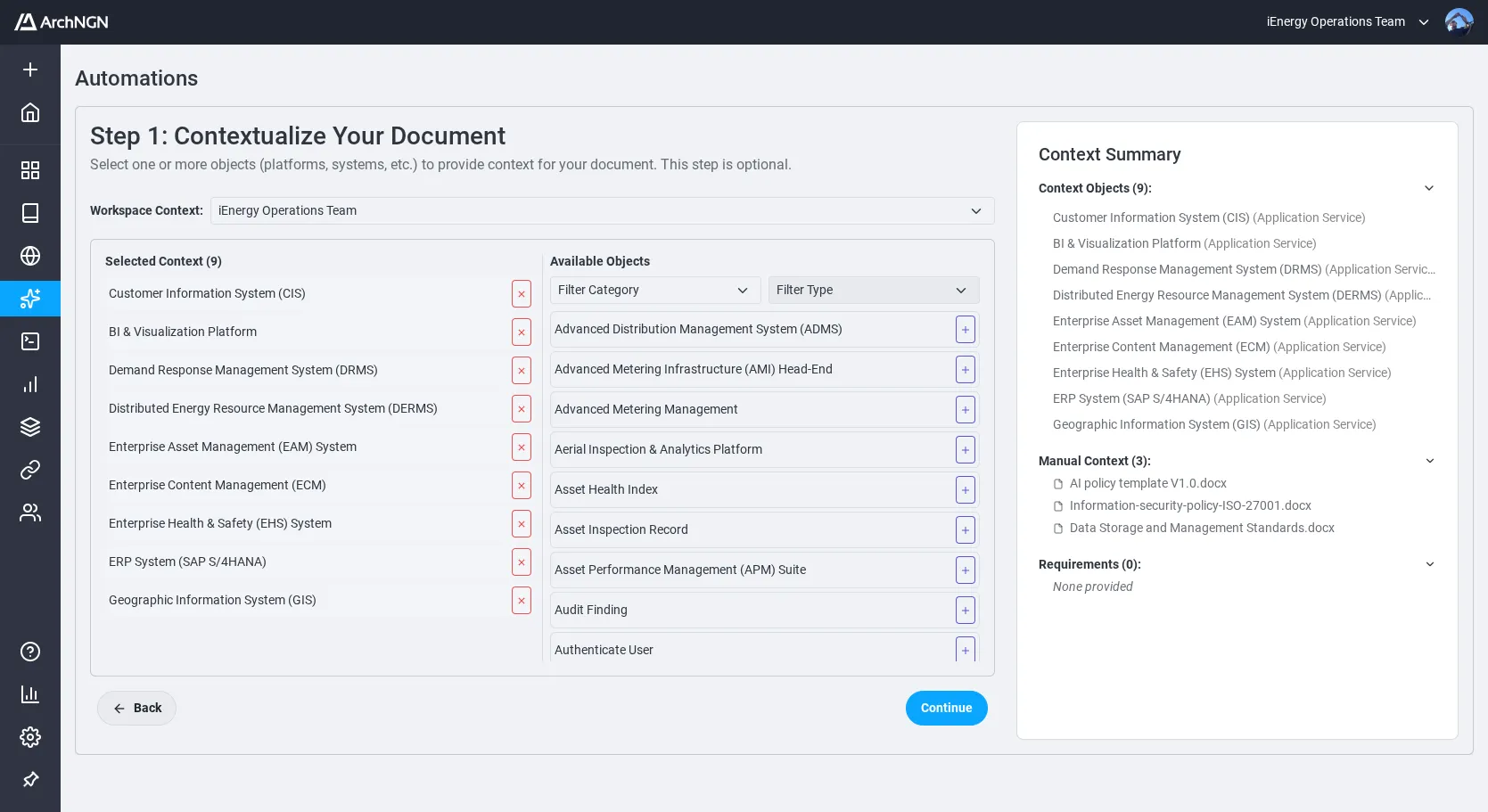
- Select context objects: Existing objects from the Registry to provide architectural context
Running an Automation
Section titled “Running an Automation”- Navigate to Automations in the left sidebar.
- Select the automation type.
- Provide inputs (documents, URLs, context objects).
- Start the automation.
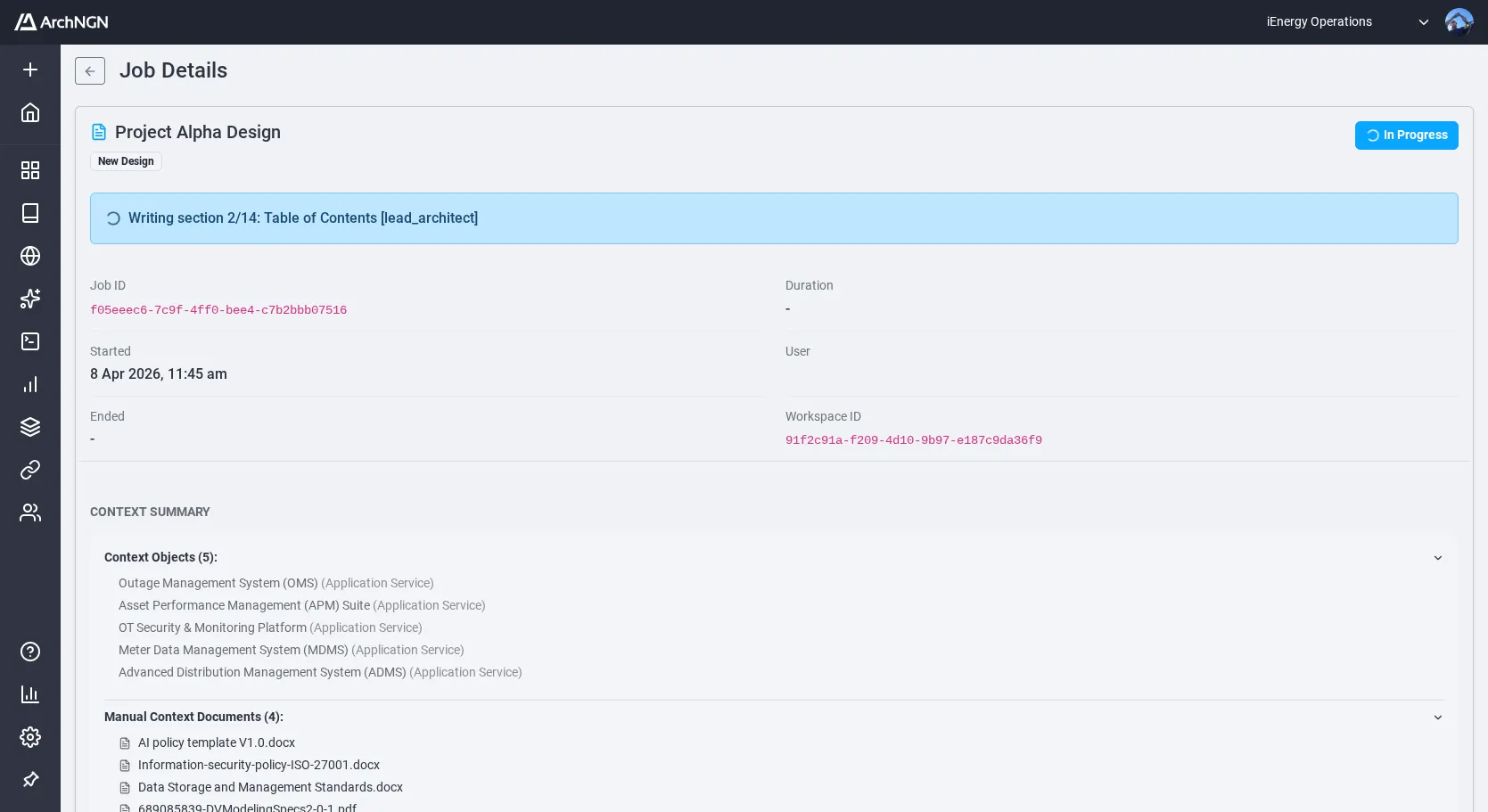
The automation runs as a background job. You can monitor its progress on the Jobs page.
What Automations Produce
Section titled “What Automations Produce”Depending on the type and inputs, an automation can generate:
- Architecture diagrams: Rendered from PlantUML in formats such as Cloud Architecture, Flowcharts, Sequence Diagrams, ERD, BPMN, Context Diagrams, and Component Diagrams
- Objects and associations: Extracted elements are created in the Registry for review
- Requirements traceability report: A matrix mapping each input requirement to the design elements that satisfy it (see below)
- Coverage assessment: A summary of how completely the generated design addresses the supplied requirements, standards, and context (see below)
- Assessment summaries: For design reviews, a structured evaluation of gaps, risks, and recommendations
- Generated documents: Downloadable from the Jobs page
Requirements Traceability and Coverage
Section titled “Requirements Traceability and Coverage”Every automation that produces a design (New Design, Reverse Engineer, Forward Engineer, and Design Review) generates a requirements traceability report and a coverage assessment alongside the design artefacts.
Requirements Traceability Report
Section titled “Requirements Traceability Report”The traceability report extracts the discrete requirements, constraints, and standards from your inputs (uploaded documents, URLs, and context objects) and maps each one to the design elements that address it.
For each requirement, the report shows:
- Requirement ID and source: Where the requirement came from (which document and section, URL, or context object)
- Requirement statement: The extracted requirement text
- Type: Functional, non-functional, constraint, standard, or assumption
- Linked design elements: The diagrams, objects, associations, or document sections that satisfy the requirement
- Status: Satisfied, partially satisfied, or unaddressed
This view makes it easy to demonstrate to stakeholders that the design has considered every input and to drill into the specific element that addresses a given requirement.
Coverage Assessment
Section titled “Coverage Assessment”The coverage assessment summarises the traceability data into a single quality view of the design:
- Coverage score: The proportion of input requirements that are fully satisfied by the generated design
- Gaps: Requirements that are unaddressed or only partially addressed, with suggested follow-up actions
- Assumptions: Statements the AI inferred where source material was ambiguous or missing
- Out-of-scope items: Inputs that were deliberately excluded from the design, with reasoning
The coverage assessment is included in the generated design document and is also available as a standalone report from the Jobs page.
Reviewing Results
Section titled “Reviewing Results”After an automation completes, review the generated outputs on the Jobs page before they are committed to the Registry. Use the traceability report and coverage assessment to validate that the design addresses your requirements before publishing.
Token Usage
Section titled “Token Usage”Automation jobs consume AI tokens from your account allowance. Token costs vary depending on the AI mode selected. For a full breakdown of costs by job type and AI mode, see Usage.