Workstreams
Workstreams turn requirements into a technology design, or review a design you already have. Both are grounded in what the workspace knows: its objects and associations, the approved guidance in the Reference Library, and the documents you add.
Open Workstreams in the sidebar, or choose Workstream from + New.
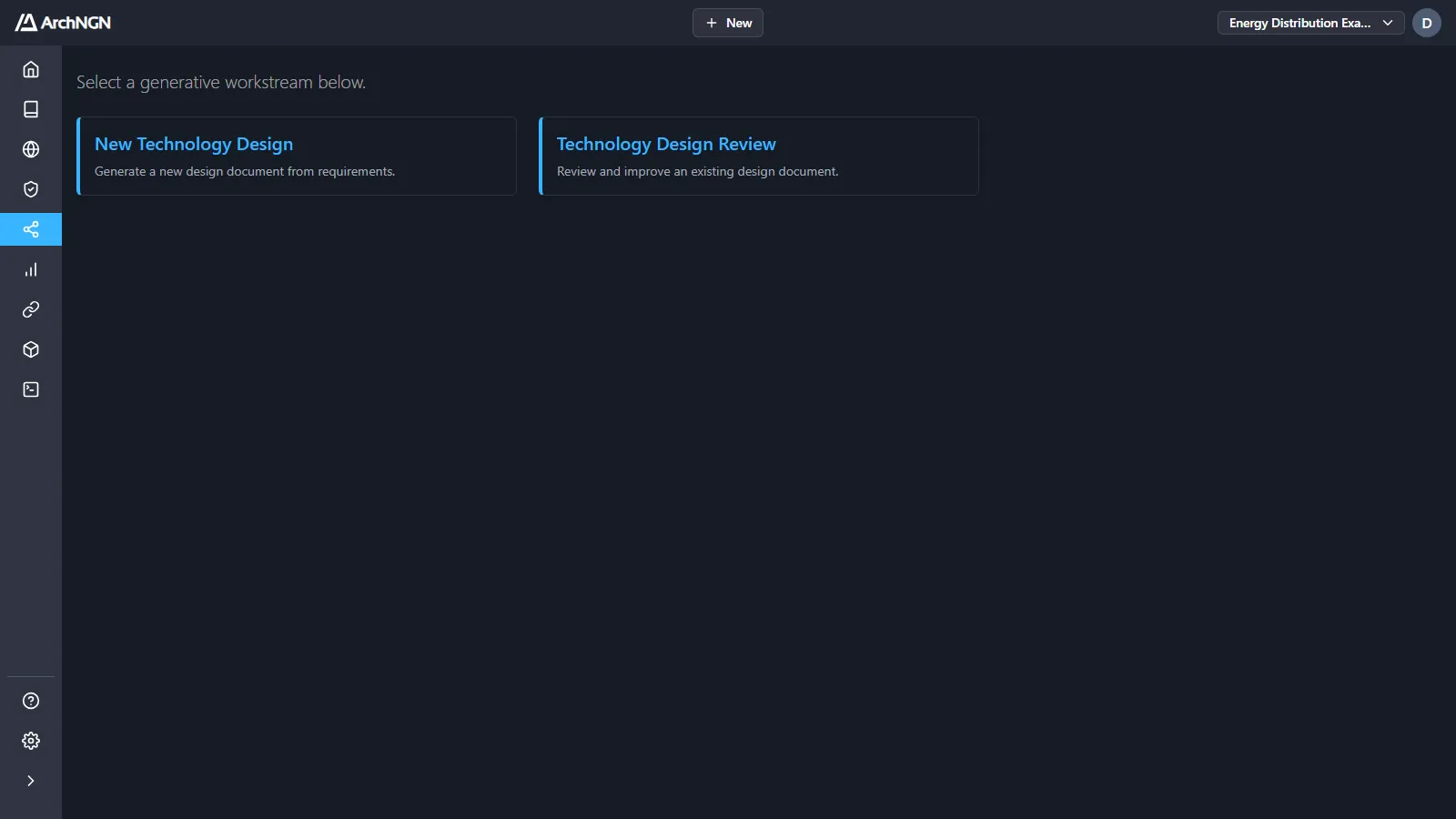
| Workstream | What it does |
|---|---|
| New Technology Design | Generates a new design document from your requirements. |
| Technology Design Review | Reviews an existing design document against your requirements, standards and model, and proposes changes with the reasoning for each. |
New Technology Design
Section titled “New Technology Design”The wizard has five steps, with a running Context Summary beside it.
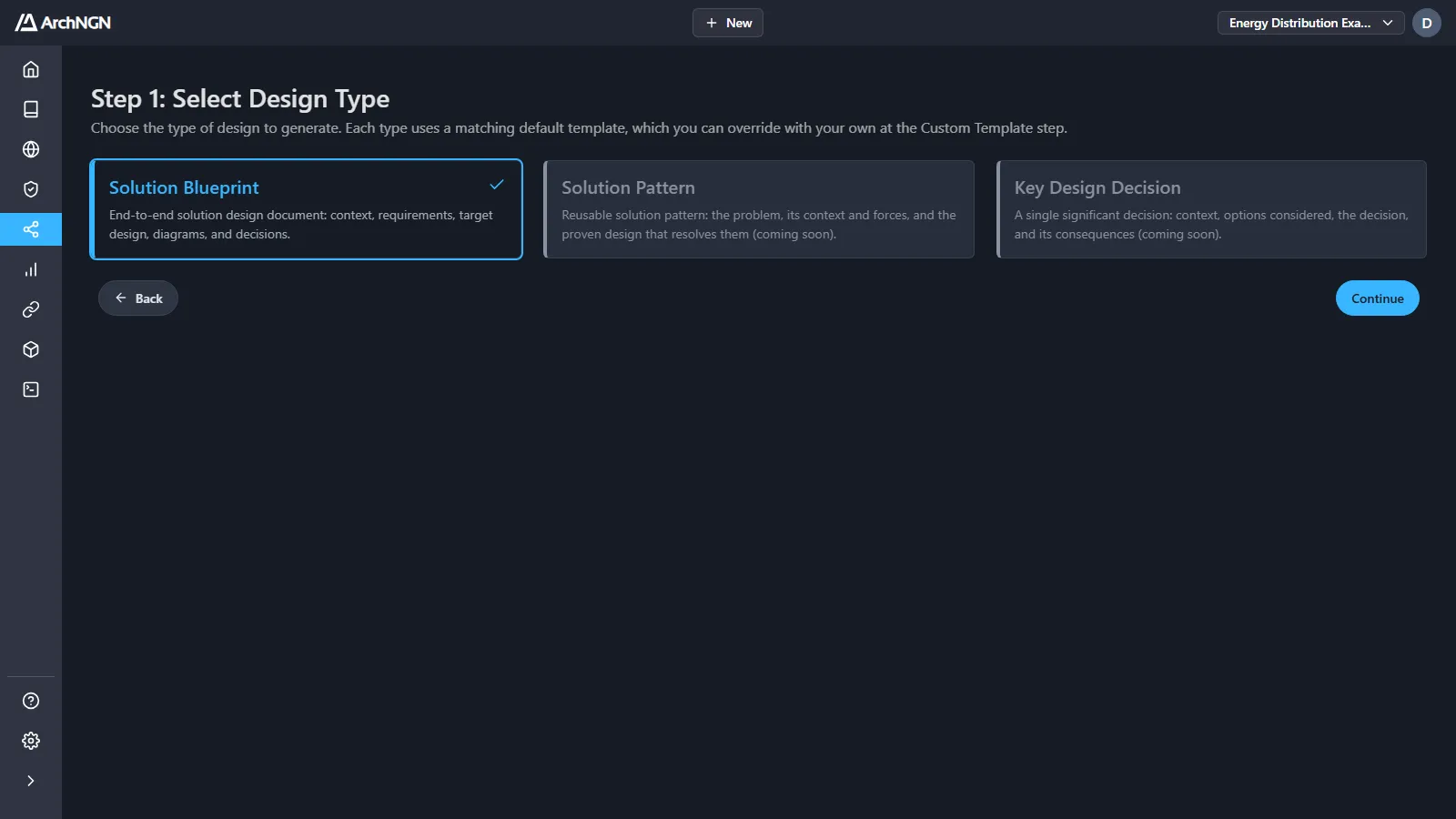
- Select Design Type. Solution Blueprint produces an end-to-end solution design: context, requirements, target design, diagrams and decisions. Solution Pattern and Key Design Decision are coming soon.
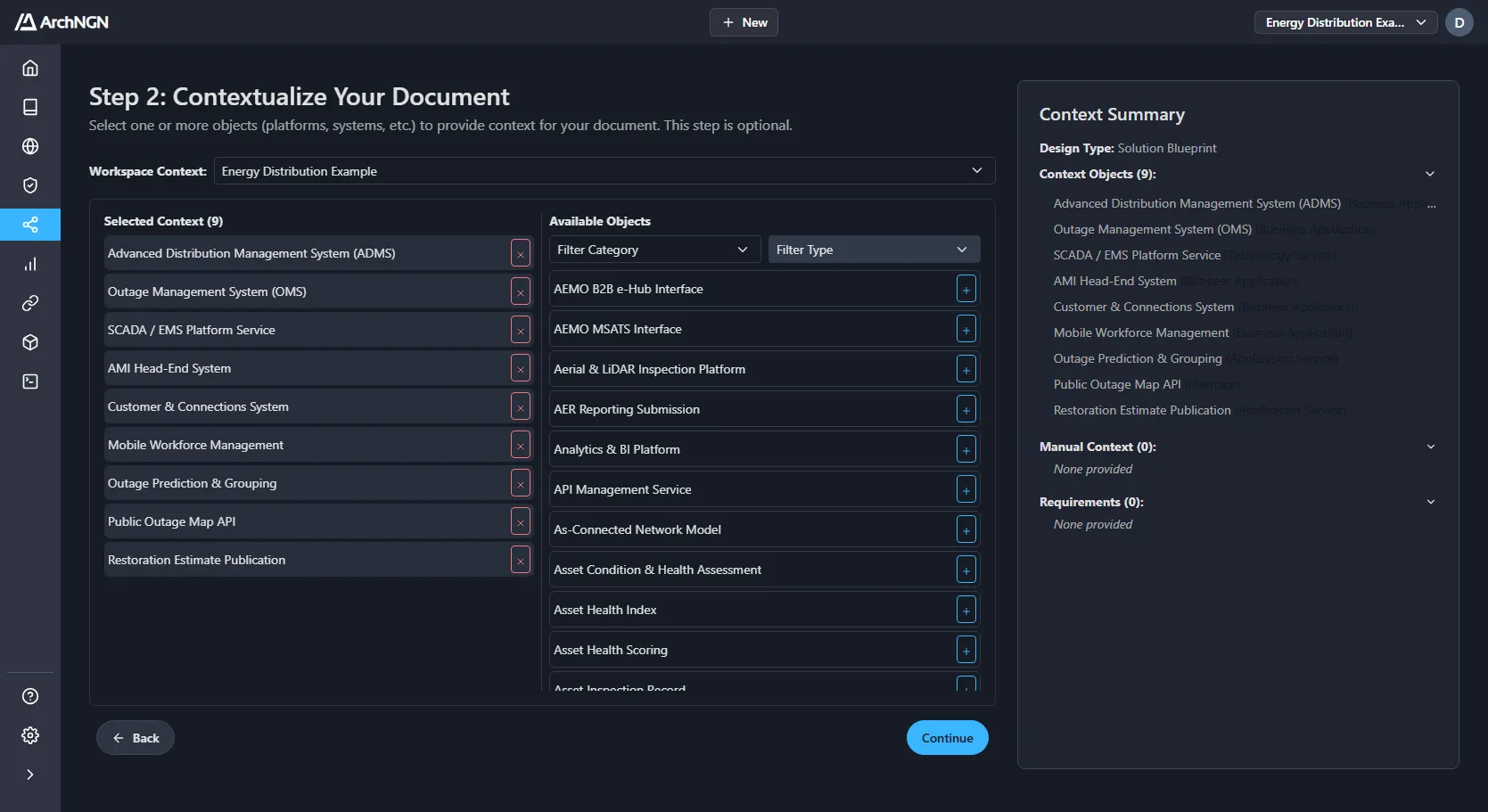
- Contextualize Your Document (optional). Pick the objects the design touches, from this workspace or another. They and their neighbours ground the design in what already exists.
- Add Manual Context Documents (optional). Technical standards, best practices or style guides that aren’t in the Reference Library.
- Add Requirements (required). Upload documents, add URLs, or write the requirements directly.
- Custom Template (optional). Supply a JSON template to control the document’s structure. Without one, the design type’s default template is used. Then name the document and start generation.
Documents can be PDF, Word, PowerPoint, plain text, Markdown, XML or HTML.
If the account’s organisation details don’t say what industry or regions you work in, the workstream asks before it starts. Fill them in once under Settings → General and it won’t ask again.
Technology Design Review
Section titled “Technology Design Review”- Upload Design Document: the design to review.
- Upload Business Requirements (optional, recommended): the requirements the design must meet, uploaded or written directly.
- Add context (optional): performance targets, data domains and models, cloud patterns, engineering design patterns, security and governance standards, and industry regulations.
The result shows each proposed change beside the original, with the AI’s rationale. Choose the proposed or the original for each, then save.
What a run produces
Section titled “What a run produces”Each run is a background job. Follow it under Jobs. A completed design includes:
- The design document, with architecture diagrams such as context, component, sequence, cloud architecture and data diagrams.
- Objects and associations extracted from the design, for review before they reach the Repository.
- Requirements traceability: each requirement from your inputs, where it came from, and the parts of the design that meet it, marked satisfied, partly satisfied or not addressed.
- Coverage: how many requirements the design fully meets, the gaps, the assumptions made where inputs were silent, and what was left out of scope and why.
- Open decisions: architecture decisions the design left open for review.
When the AI needs a person to decide something, the job pauses at Clarifications Required and asks. Answer, and it carries on.
Grounded in your model
Section titled “Grounded in your model”Relevant objects, relationships and guidance are retrieved from the workspace and given to each step, so a design uses the systems you already have and the standards you already hold. Where a design departs from established guidance, the run flags the deviation and proposes a decision for review, so the departure is recorded rather than lost.
The Explorer’s Context view shows what a workstream will draw on before you run it.
Credits
Section titled “Credits”A New Technology Design costs 64 credits and a Technology Design Review 48, from the account’s monthly allowance. See Usage.