Git repositories
The repository connectors clone a Git repository and have the AI explore it, reading the file tree, build files, infrastructure as code, CI pipelines and source, to map it to objects and associations in the workspace. They also record deterministic identity signals, such as built container images and declared resource names, so the code can be linked to where it runs. See Connectors for the general workflow.
Repositories are the recommended estate source. Access is read-only, and a public repository needs no credential.
| Connector | Hosts |
|---|---|
| GitHub | github.com |
| Azure DevOps Repos | dev.azure.com |
| GitLab | gitlab.com and self-managed GitLab |
| Bitbucket | Bitbucket Cloud and Bitbucket Data Center |
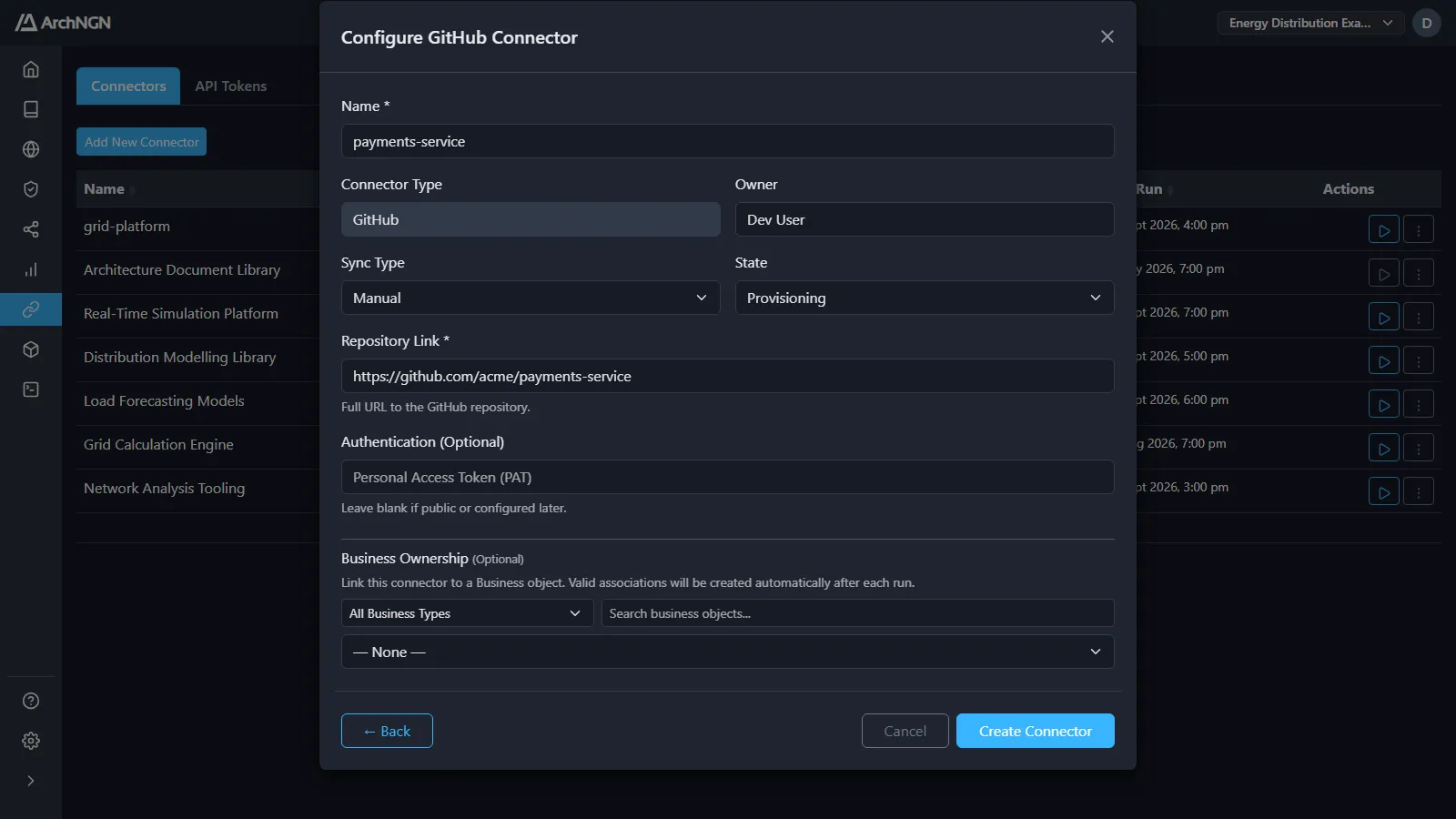
Configuration
Section titled “Configuration”| Field | Value |
|---|---|
| Repository Link | The repository’s full URL. See the formats below. |
| Authentication | A read-only access token, for a private repository. Leave it blank for a public one. |
| Username (Bitbucket app passwords only) | The Bitbucket username the app password belongs to. |
The token is stored as an encrypted secret and used only during runs. It is never shown again. To rotate it, open the connector and type the new value.
Repository URLs, branches and folders
Section titled “Repository URLs, branches and folders”| Host | URL | Branch or folder |
|---|---|---|
| GitHub | https://github.com/acme/payments-service | https://github.com/acme/monorepo/tree/develop/services/payments clones develop and reads only services/payments. |
| Azure DevOps | https://dev.azure.com/acme/payments/_git/payments-service | Add ?version=GB<branch> for a branch, or ?path=/<folder> for a folder. |
| GitLab | https://gitlab.com/acme/payments-service | .../-/tree/<branch>/<folder> is honoured. |
| Bitbucket | https://bitbucket.org/acme/payments-service | Data Center browse URLs (/projects/KEY/repos/slug/browse) are accepted too. |
Without a branch, the default branch is cloned and the whole repository is read.
Create a read-only token
Section titled “Create a read-only token”Grant the least access that can read the code.
GitHub
Section titled “GitHub”Fine-grained token (recommended)
- In GitHub, go to Settings → Developer settings → Personal access tokens → Fine-grained tokens, and click Generate new token.
- Under Repository access, choose Only select repositories and pick the repository.
- Under Repository permissions, set Contents to Read-only. Leave everything else at No access.
- Generate the token and copy it. GitHub shows it only once.
Classic token: choose the repo scope. Classic tokens can’t be limited to read-only or to one repository, so prefer a fine-grained token.
For organisation repositories, an organisation admin may need to approve fine-grained token access, or authorise a classic token for SSO.
Azure DevOps
Section titled “Azure DevOps”In Azure DevOps, open User settings → Personal access tokens and create a token with the Code (Read) scope, limited to the organisation that holds the repository.
GitLab
Section titled “GitLab”Create a personal, group or project access token (Settings → Access Tokens) with the read_repository scope.
Bitbucket
Section titled “Bitbucket”Create a repository or workspace access token with Repositories: Read. If you use an app password instead, give it Repositories: Read and enter the Bitbucket username it belongs to.
What a run produces
Section titled “What a run produces”- Objects: applications, components, application services, interfaces, and the technology and data the code evidences, such as databases, queues, buckets and clusters declared in infrastructure as code.
- Associations between them, checked against your metamodel.
- Reference Library links: objects connected to the guidance that applies to them.
- Identity signals that link the code to the cloud resources it runs on.
The run’s details, under Jobs, list what was read (infrastructure as code, CI pipelines, submodules) and what wasn’t, and the objects and associations created, updated, kept or removed.