Findings
Findings lists everything in the active workspace’s estate that breaks a rule in an enabled policy pack, and what is missing to fix it. It is a worklist: start at the top and work down.
Open it from Governance → Findings. Anyone who can open the workspace can read it.
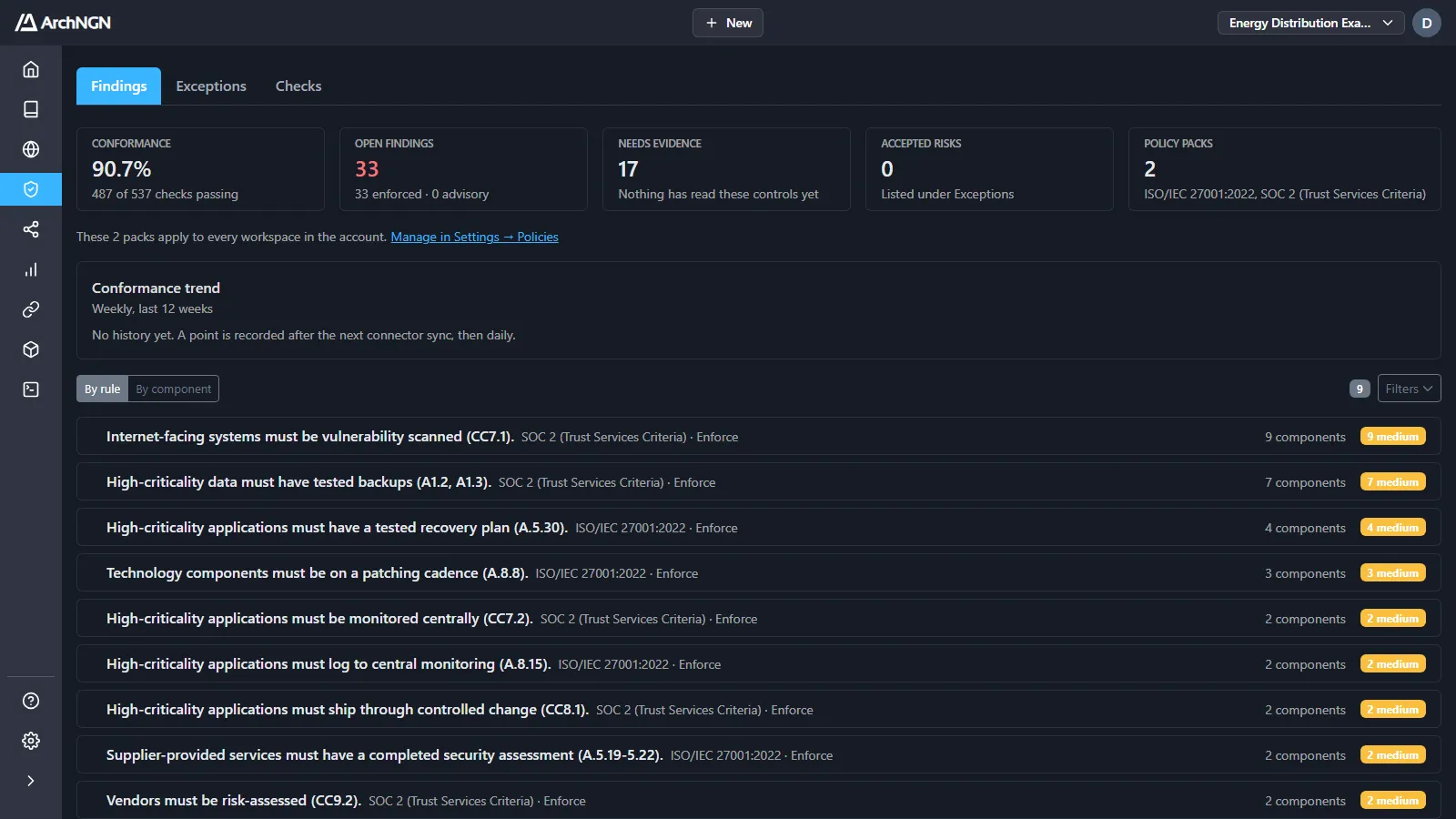
The figures at the top
Section titled “The figures at the top”| Figure | What it shows |
|---|---|
| Conformance | The share of policy checks passing. Each rule checked against each object it applies to is one check. |
| Open findings | Findings not yet fixed or accepted, split into enforced and advisory. |
| Needs evidence | Checks on a control that nothing has read yet. See below. |
| Accepted risks | Findings someone has accepted, listed under Exceptions. |
| Policy packs | The packs enabled for the account. They apply to every workspace. Manage them in Settings → Policies. |
Conformance trend shows the rate week by week over the last 12 weeks. A point is recorded after every connector sync, and once a day, so the line starts the day a pack is enabled. A week with no data is a gap, not a zero.
By rule or by component
Section titled “By rule or by component”- By rule (the default) makes each rule one row, with the components it flags inside: “Internet-facing systems must be vulnerability scanned: 9 components”. A gap a connector left across hundreds of objects reads as one fix at the source, not hundreds of separate ones.
- By component merges each component’s findings into one row, worst first. A component that breaks three packs is one row, not three.
Open a row to see each finding: the component, what is wrong, which rule and pack it breaks, and what is unmet, such as missing tag ‘backup:tested’.
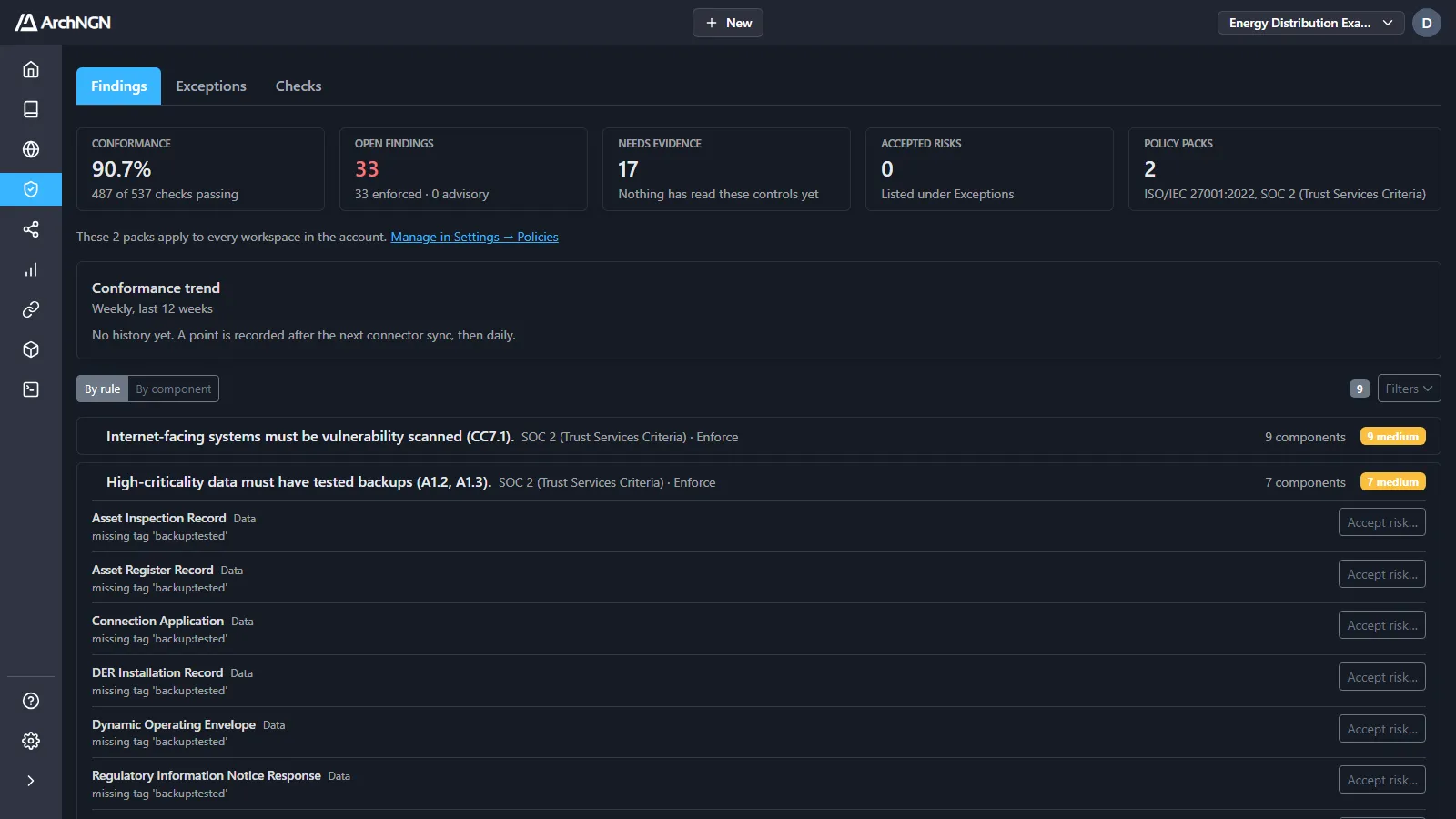
Filters narrows the list by Policy pack, Severity (high, medium, low) and Status (Open, Needs evidence, Accepted risks), or by search. View findings on a pack’s card under Settings → Policies opens this page filtered to that pack.
Fix a finding
Section titled “Fix a finding”Each finding has one of three ways out:
- Fix the estate. Change the system, or the source the connector reads, and the finding clears on the next sync.
- Record the fact. If the system already meets the rule but nothing says so, add the tag the rule reads (for example
backup:tested) to the object. See Shared tags. - Accept the risk. If the gap is known and acceptable for now, accept it with a reason and an expiry. See below.
Accept a risk
Section titled “Accept a risk”Click Accept risk… on a finding.
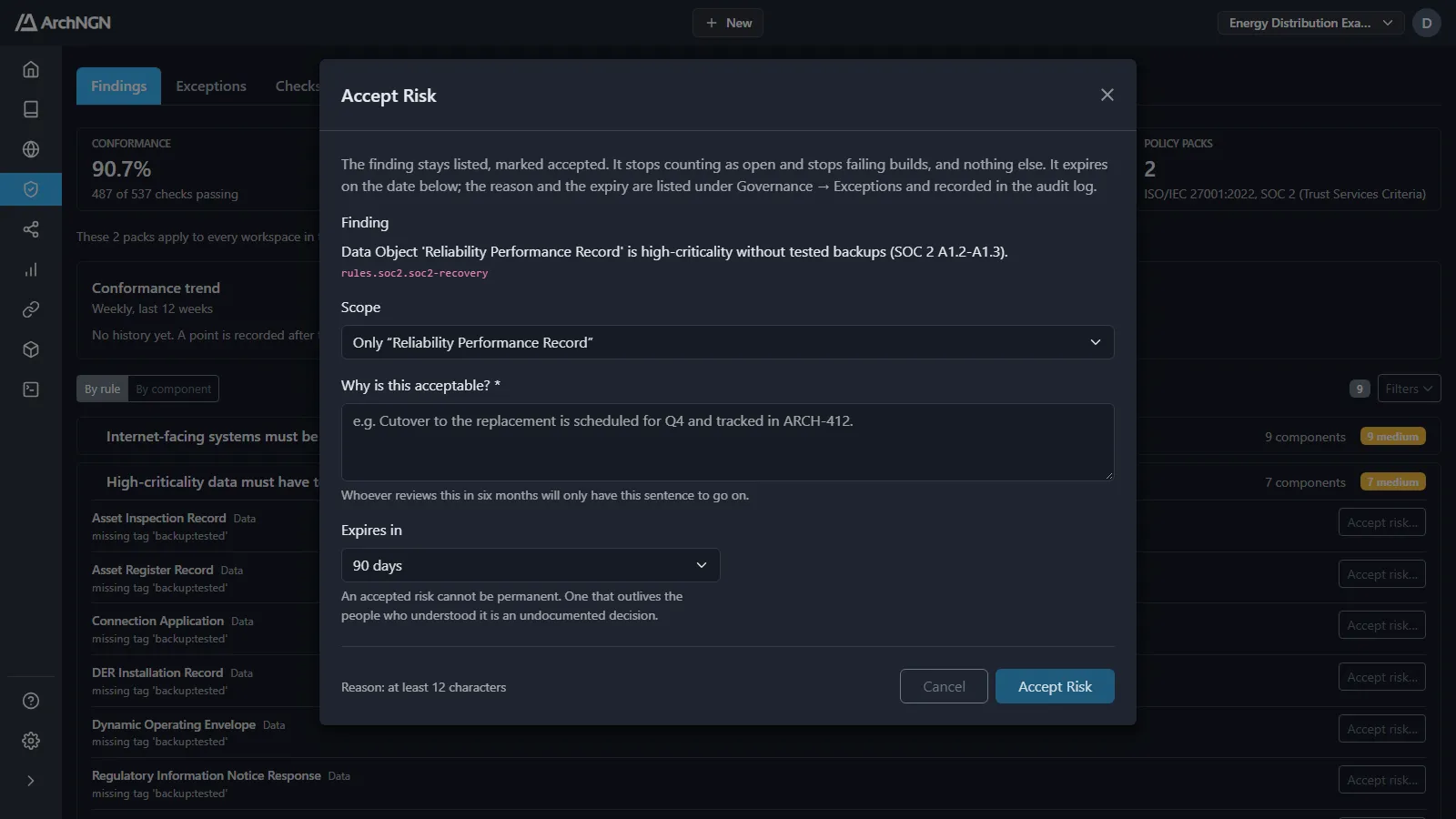
- Scope: only this component, or every component the rule flags in the workspace.
- Why is this acceptable?: required, at least 12 characters. Whoever reviews it later has only this sentence to go on.
- Expires in: 30 days, 90 days, 180 days or 1 year. An accepted risk can’t be permanent.
The finding stays listed, marked accepted. It stops counting as open and stops failing builds, and nothing else changes. The reason and expiry are listed under Exceptions and recorded in the audit log. Accepting a risk needs the check:waive capability, which account admins have.
Needs evidence
Section titled “Needs evidence”Some controls can’t be read from the model yet: no source says whether a component signs in with MFA, or is encrypted in transit. A check on such a control is not a failure. It is listed as Needs evidence, with where the evidence would come from. It doesn’t count as open or as passed, doesn’t block anything, and can be accepted like a finding.
To supply the evidence, connect the source that holds it, or record it under Manual inputs.
Advisory and Enforce
Section titled “Advisory and Enforce”A finding from a pack or rule set to Advisory is reported and blocks nothing. A finding from a rule set to Enforce blocks creating or editing a non-conforming object, and fails a design check, unless its risk is accepted. See Frameworks.
Related
Section titled “Related”- Frameworks and Custom policies: the rules behind the findings.
- Exceptions: every accepted risk and switched-off rule.
- Design checks: the same rules, applied to a change before it merges.