Workspaces
A workspace holds one model of an estate: its objects, associations, connectors, jobs, findings and exceptions. Everything in the sidebar above Settings acts on the active workspace. Policies, members and usage are account-wide and cover every workspace.
Manage workspaces
Section titled “Manage workspaces”Open Settings → Workspaces. The list shows each workspace’s description, and how many objects, associations and connectors it has.
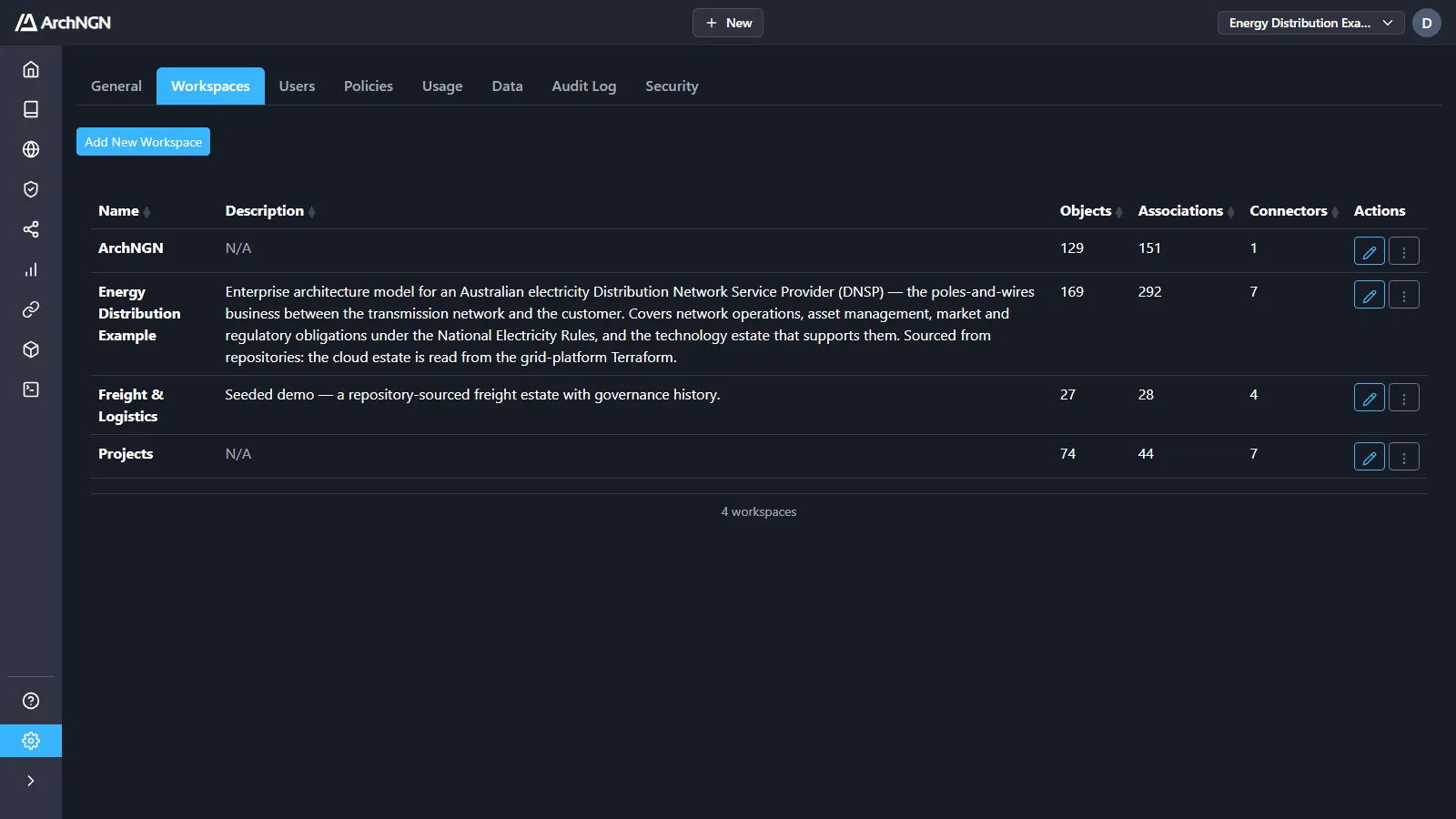
- Add New Workspace, or + New → Workspace: enter a name and a description. The workspace is ready at once.
- Edit workspace: rename it or change its description.
- Delete workspace: delete it and everything in it. This can’t be undone. Export it first under Settings → Data if you may need it.
Creating a workspace is for account admins. Renaming or deleting one needs the workspace:manage capability, which users and admins have.
Switch workspace
Section titled “Switch workspace”Use the workspace selector in the top bar. Home, the Repository, the Explorer, Governance, Workstreams, Reports, Integrations, Model and Jobs all follow it.
One estate source per workspace
Section titled “One estate source per workspace”A workspace builds its estate from repositories or from cloud accounts, not both, because they describe the same systems. Document sources go with either. If you need both views of an estate, use two workspaces. See Connectors.
How to divide your estate
Section titled “How to divide your estate”| Approach | When it fits | Example |
|---|---|---|
| By domain | Teams own clear business domains | Customer Identity, Payments |
| By line of business | Large organisations with separate IT | Retail Banking, Insurance |
| By value stream | Product-centric teams | Order to Cash, Onboarding |
| By client | Consultancies modelling client estates | One workspace per client |
Objects marked Is Global appear in every workspace, which suits shared platforms and organisation-wide capabilities.
Import and export
Section titled “Import and export”Account admins can export workspaces as a ZIP archive and import one into another account or workspace. See Account settings → Workspace data.