Objects and associations
Objects are the things in your estate: applications, services, interfaces, data stores, cloud resources, capabilities, roles and value streams. Associations are directional links between two objects, such as Realizes, Deployed To or Data Flow. Together they make the dependency graph that the Explorer, Reports, policy checks and design checks all read.
Most objects and associations come from connectors. You add what no source can tell ArchNGN, such as owners, criticality and lifecycle, and decide on the links the platform inferred.
What an object records
Section titled “What an object records”Click an object in the Repository, or a node in the Explorer, to see its details.
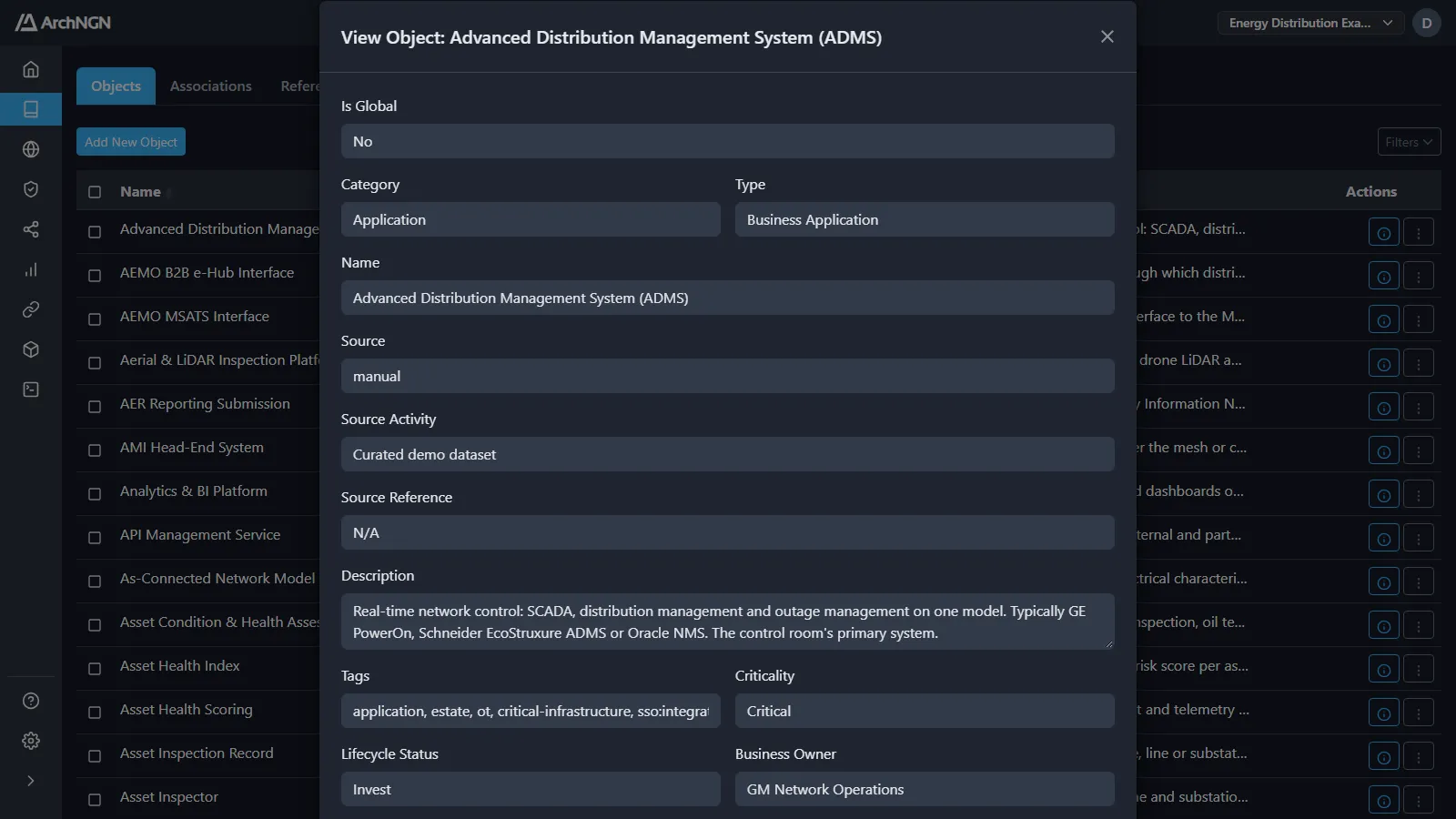
| Field | What it holds |
|---|---|
| Name, Description | What it is. |
| Category, Type | Where it sits in the metamodel, for example Application / Business Application. |
| Tags | Facts the structure can’t show, such as personal-data, encrypted-at-rest or dr:tested. Policy packs read them. |
| Criticality | How much depends on it, for example Critical, High or Medium. Many policy rules apply only above a criticality. |
| Lifecycle Status | Invest, Tolerate, Migrate or Eliminate. Drives the Lifecycle Radar and the drift checks on new dependencies. |
| Business Owner, Technology Owner | Who answers for it. |
| Version | The version, where it matters. |
| Is Global | Shared across every workspace in the account. Useful for shared platforms and organisation-wide capabilities. |
| Source, Source Activity, Source Reference | Who or what created it, and where it was read from. |
Objects read from infrastructure as code or a cloud account also show their configuration attributes and network placement. The details list the object’s associations with their evidence, any exceptions accepted for it, and View Context Graph, which opens the object in the Explorer’s Context view.
Create or edit an object
Section titled “Create or edit an object”- Open Repository → Objects and click Add New Object, or choose Object from + New.
- Choose the Category and Type, and enter a Name.
- Add a description, tags, criticality, lifecycle status and owners.
- Save.
To edit, open the object and click Edit. Categories and types come from your account’s effective metamodel.
Create an association
Section titled “Create an association”- Open Repository → Associations and click Add New Association, or choose Association from + New.
- Choose the source object, the relationship and the target object.
- Save.
The relationships offered are the ones the metamodel permits between those two types. An association you create is recorded as Stated.
Link evidence
Section titled “Link evidence”Every association says whether it is a fact or a guess. The label shows in the Associations tab, in object details, in the Explorer, and in the REST API and MCP server.
| Label | Meaning |
|---|---|
| Observed | The platform read it: a connection proved by cloud inventory, or an exact code-to-cloud match on a container image, a declared resource or a service tag. |
| Stated | A person entered or confirmed it, or it was mapped from a document or repository. |
| Inferred | The platform guessed it: from co-location (a shared network, tag or resource group), or by AI matching a code component to the cloud resource it runs on. |
Filter the Associations tab by Evidence to see only the guesses. Two row actions turn a guess into a decision (you need write access to the workspace):
- Confirm link: you vouch for it. It becomes Stated and is kept across every re-sync. No connector removes a confirmed link.
- Reject link: it is wrong. It is removed, and a link the AI proposed is never proposed again for that pair.
The Explorer draws inferred links dashed. A design check finding that rests on an inferred link says so, so nobody reworks a design over a link that may not exist.
Delete
Section titled “Delete”Delete an object from its row actions, or tick several and delete them together. Deleting an object also deletes its associations. This can’t be undone.
Deleting a connector offers to delete everything it created as well. See Connectors.