Frameworks
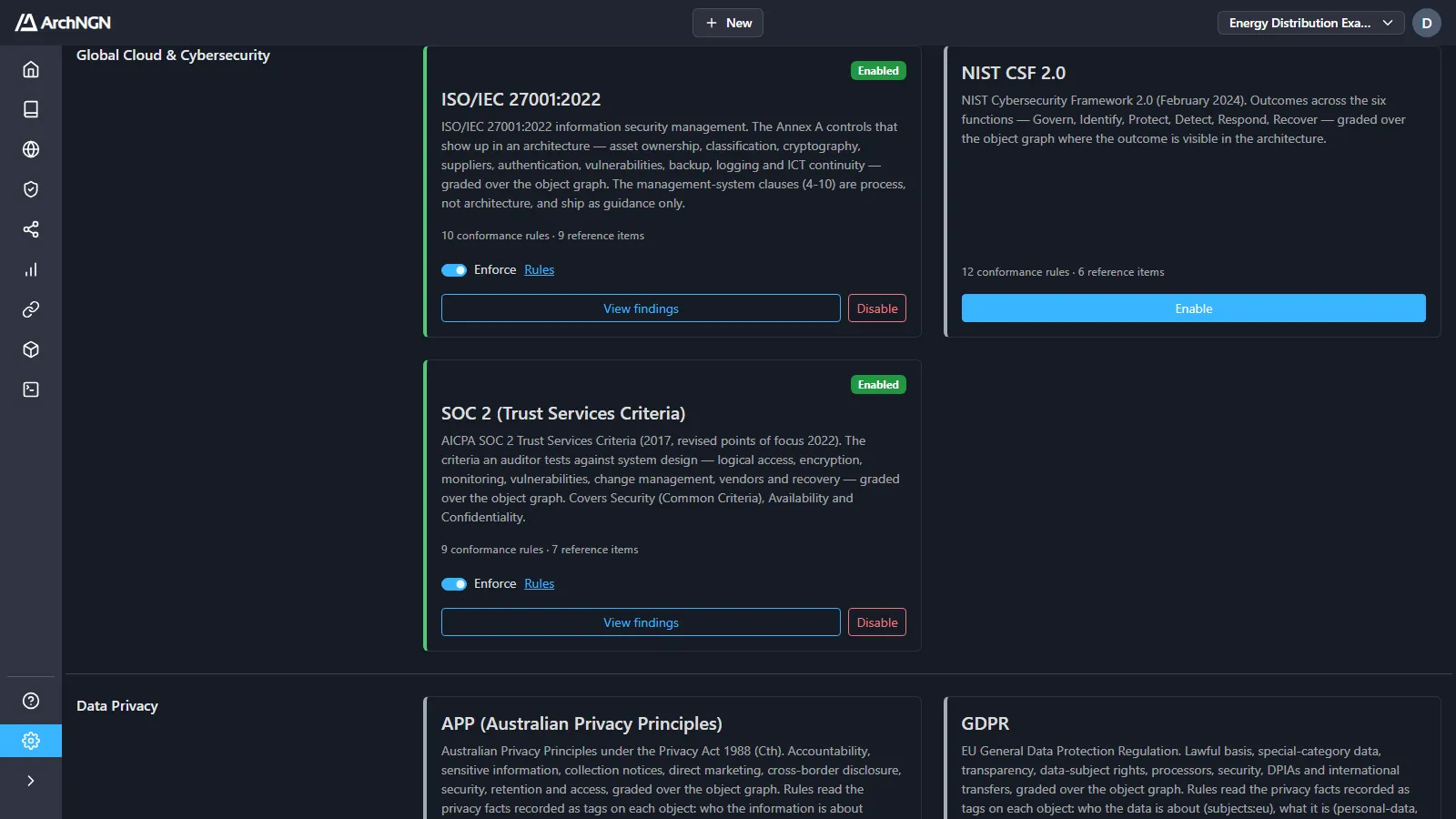
Frameworks are ready-made policy packs for recognised standards and regulations, such as ISO 27001, SOC 2 and GDPR. Enabling a framework adds its controls to the Reference Library as guidance, and checks every workspace’s estate against its rules.
Frameworks are under Settings → Policies, below your own custom policy packs and manual inputs. Policies live under Settings because they are account-wide: enabling a pack or changing a rule changes it for every workspace. What a pack finds is on each workspace’s Governance → Findings.
Enabling and disabling a framework needs the template:apply capability. Switching it or its rules between Advisory and Enforce, or switching a rule off, needs policy:manage. Account admins have both.
The catalog
Section titled “The catalog”| Group | Frameworks |
|---|---|
| Global Cloud & Cybersecurity | ISO/IEC 27001:2022, NIST CSF 2.0, SOC 2 (Trust Services Criteria) |
| Data Privacy | APP (Australian Privacy Principles), GDPR |
| Finance & Payments | APRA CPS 234 Information Security, EU DORA (Digital Operational Resilience Act), PCI DSS v4.0.1 |
| Healthcare | HIPAA Security Rule |
| Technology & AI Governance | ISO/IEC 42001:2023 (AI Management), Technology Lifecycle (EOL) Policy |
Each card says what the framework covers, and how many conformance rules and reference items it has. Controls that are process rather than architecture, such as ISO 27001’s management-system clauses, ship as guidance only. The Technology Lifecycle (EOL) Policy is an ArchNGN pack, not a regulation: it keeps end-of-life technology visible and retiring.
Each rule has a severity (high, medium or low) that weights how much a gap counts against conformance.
Enable a framework
Section titled “Enable a framework”Every pack starts off. To start checking against one:
- Open Settings → Policies.
- Find the framework under its group.
- Click Enable.
Its controls are added to the Reference Library as guidance, and its rules run against every workspace, reporting at Advisory. You can enable several frameworks at once. Most organisations answer to more than one.
An enabled card offers:
- Enforce: the switch that moves the whole pack from Advisory to Enforce.
- Rules: tune single rules. See below.
- View findings: open Findings filtered to this pack.
- Disable: stop checking against it. Its reference items are removed from the Reference Library.
How rules find your objects
Section titled “How rules find your objects”A rule applies to the objects it matches: by category, type, criticality, lifecycle status or tags. Tags record facts ArchNGN can’t read from the model’s structure, such as personal-data, encrypted-at-rest or retention:7y.
The tags come from one shared vocabulary that every framework and custom pack uses. Tag an object once and every pack that asks the same question sees the answer: encrypted-at-rest satisfies the GDPR, ISO 27001, SOC 2, PCI DSS, HIPAA and DORA rules alike. The full vocabulary is in Custom policies → Shared tags. If your estate already uses its own tags, map them in Manual inputs.
Advisory and Enforce
Section titled “Advisory and Enforce”- Advisory: findings are reported and nothing is blocked. Use it while you build coverage and tag your estate.
- Enforce: creating or editing a non-conforming object is blocked, and design checks fail, unless the risk is accepted.
Start at Advisory, watch what the rules flag, and switch to Enforce once the results are right.
Click Rules on an enabled card to tune single rules. Each rule has two switches:
- On: switch off a rule that doesn’t apply to you. Only this account is affected. You are asked why, and the rule is listed under Exceptions with the reason.
- Enforce: enforce one rule while the rest of the pack stays Advisory, or the other way round.
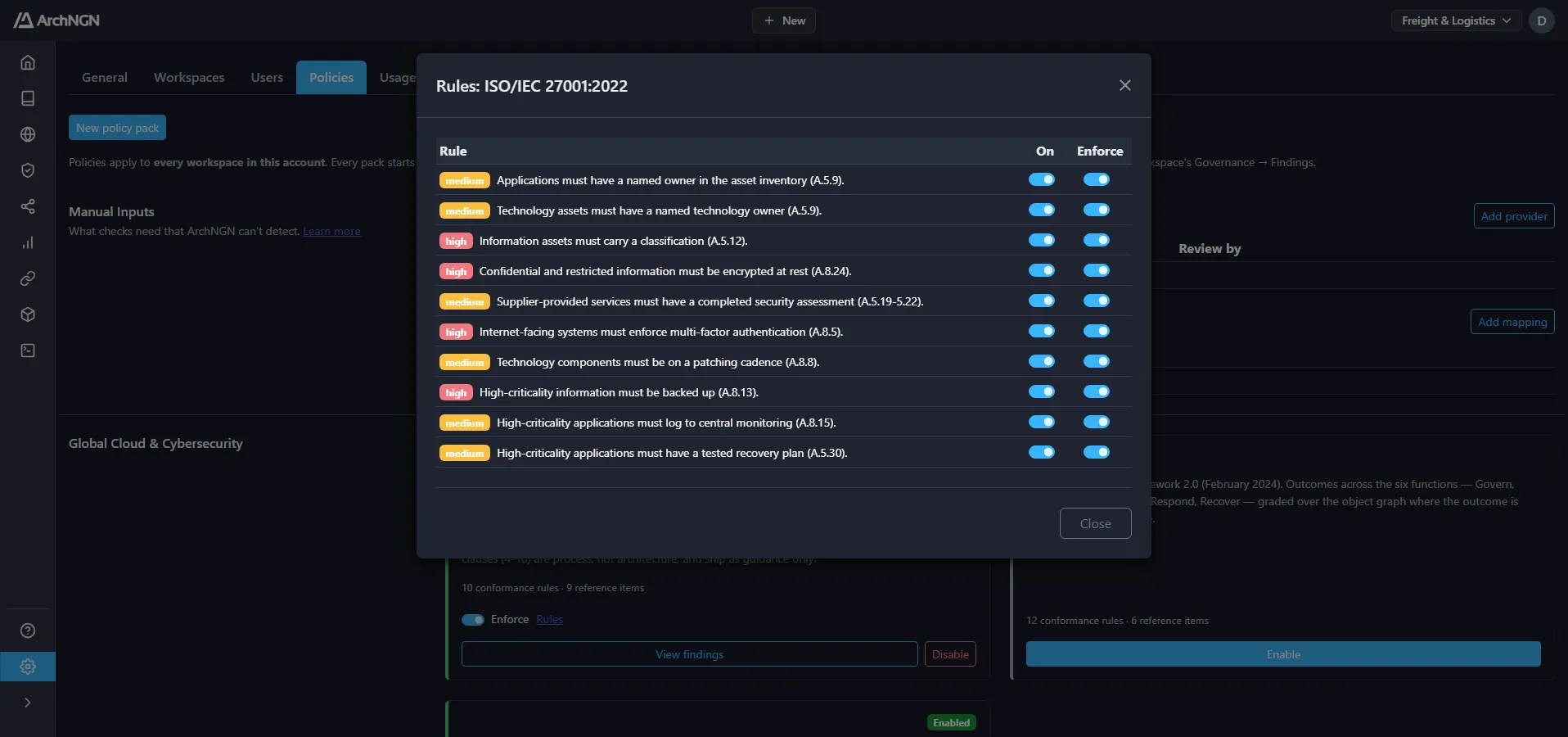
Every change of state is recorded in the audit log.
See conformance
Section titled “See conformance”The Conformance figure on Home and Findings sums every enabled pack. Findings lists each finding with its rule, pack, severity, and whether it is enforced or advisory. Fix the object, tag it, or accept the risk.
Related
Section titled “Related”- Custom policies: turn your own policy documents into packs that work alongside frameworks.
- Manual inputs: the facts checks need that ArchNGN can’t detect.
- Design checks: the pipeline gate that grades changes against enabled packs.
- Overlays: change the metamodel’s vocabulary. Frameworks don’t change the schema; they check against it.